When your image doesn't turn out the way you expected
Small tweaks to the prompt fix almost any visual problem.
Steps
The screenshots show RedesIA and the other apps with their interface in Spanish; the steps are the same in English.
- 1
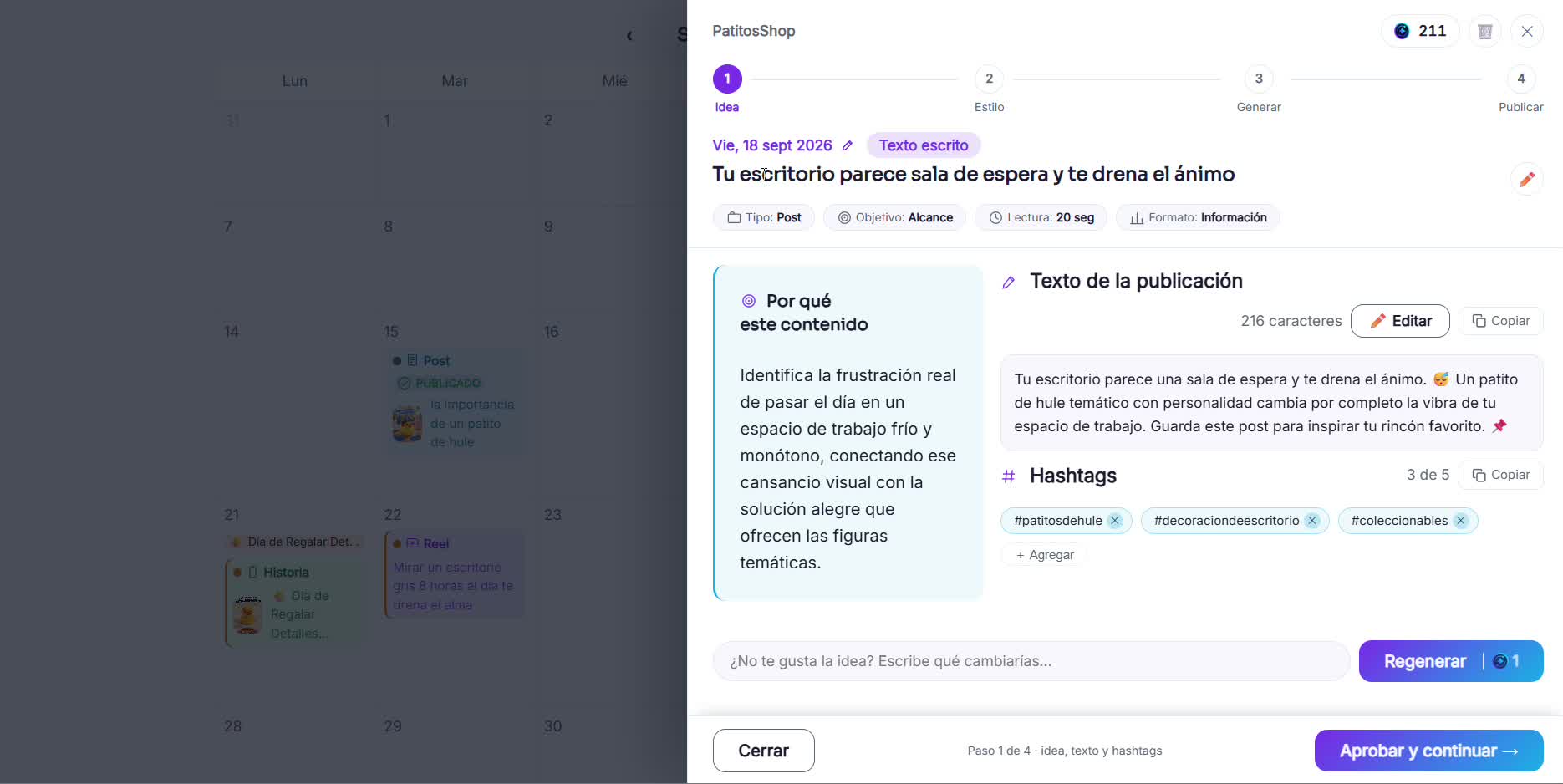
Figure out what's wrong
Sometimes the problem isn't the prompt but the idea. Check that the post text says exactly what you want to show in the image.
- 2
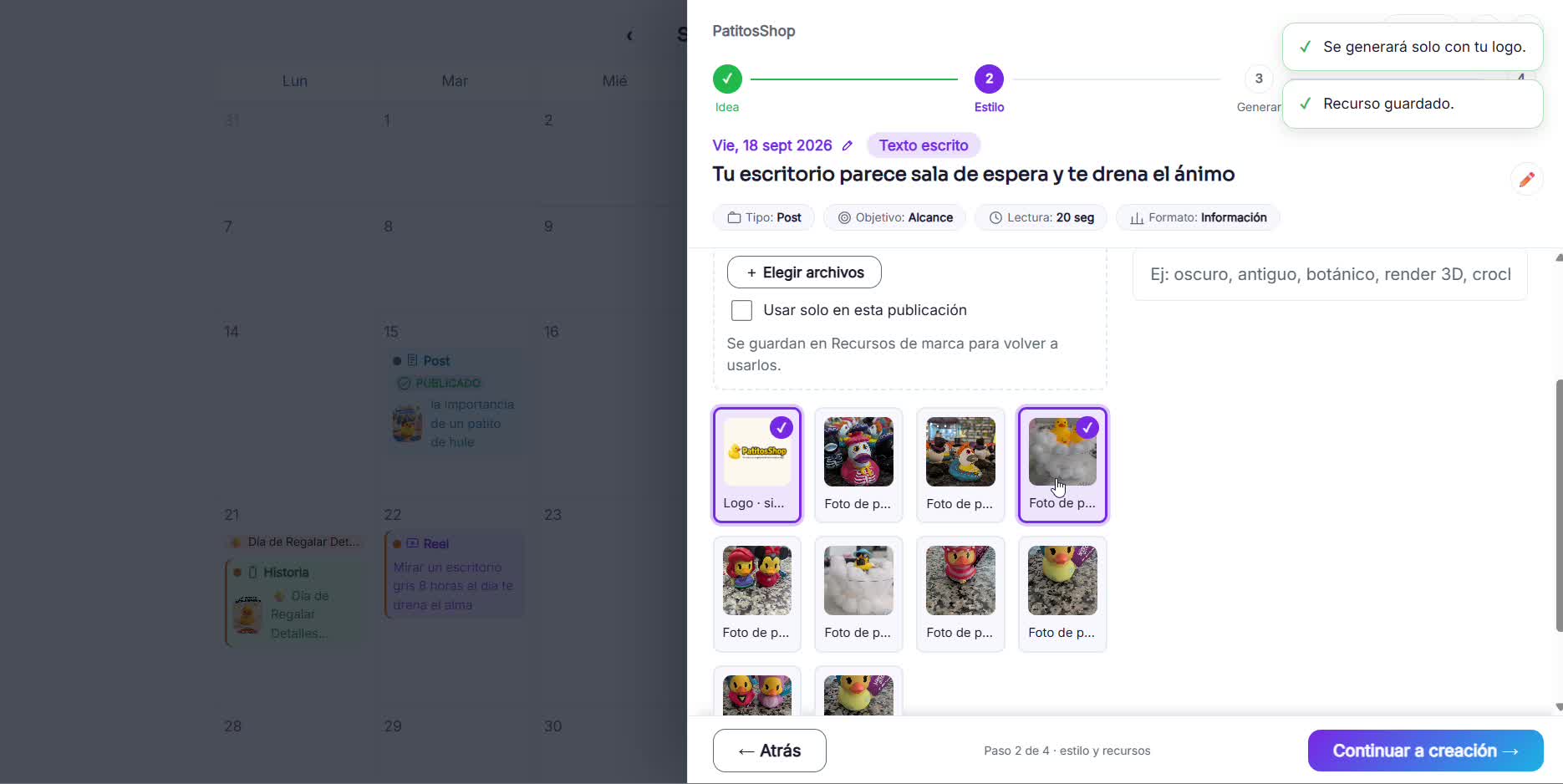
Choose the style and reference images
Upload photos of your real products as a reference. That way the AI doesn't invent details that don't match what you sell.
- 3
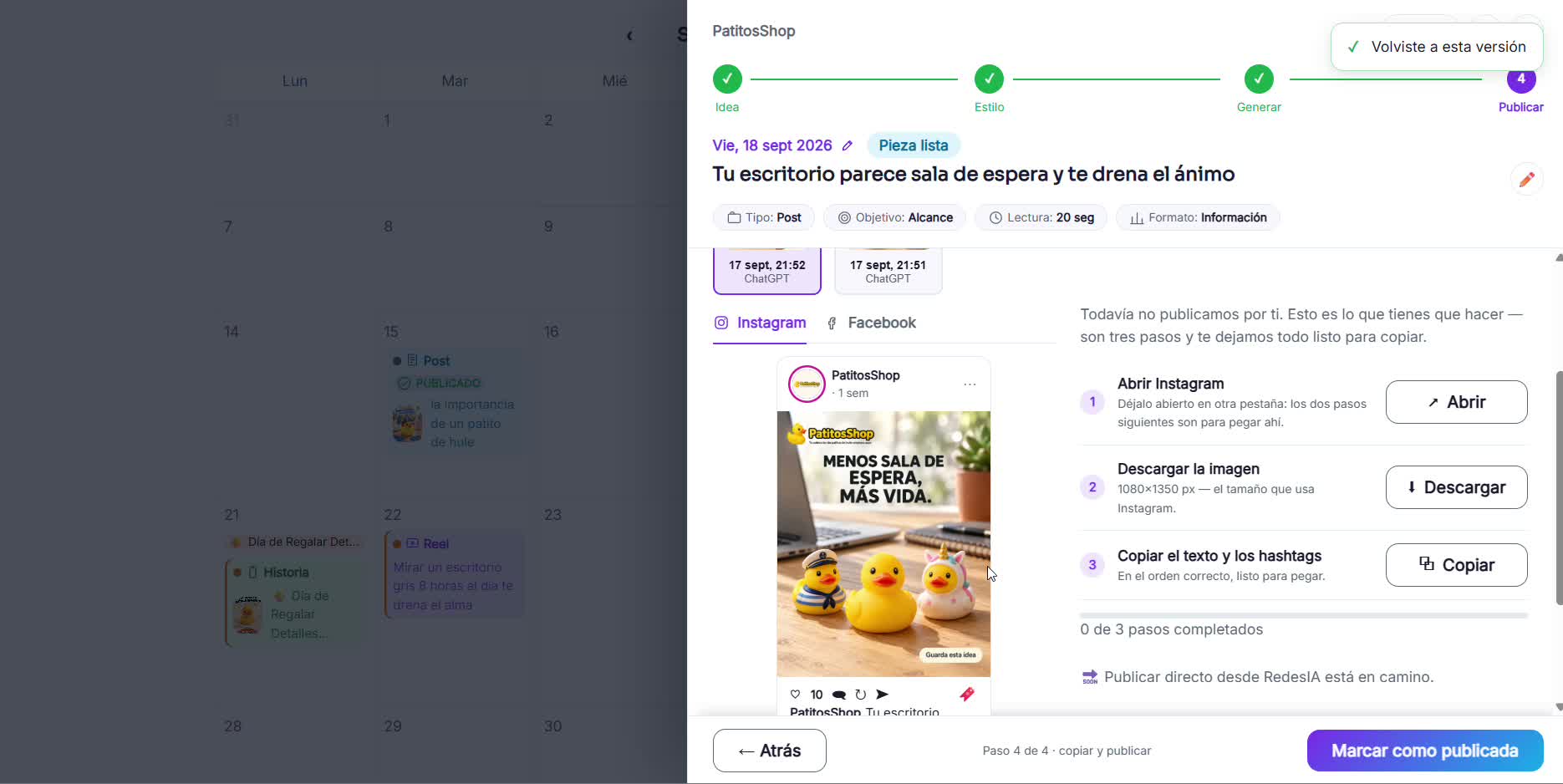
Generate and review the result
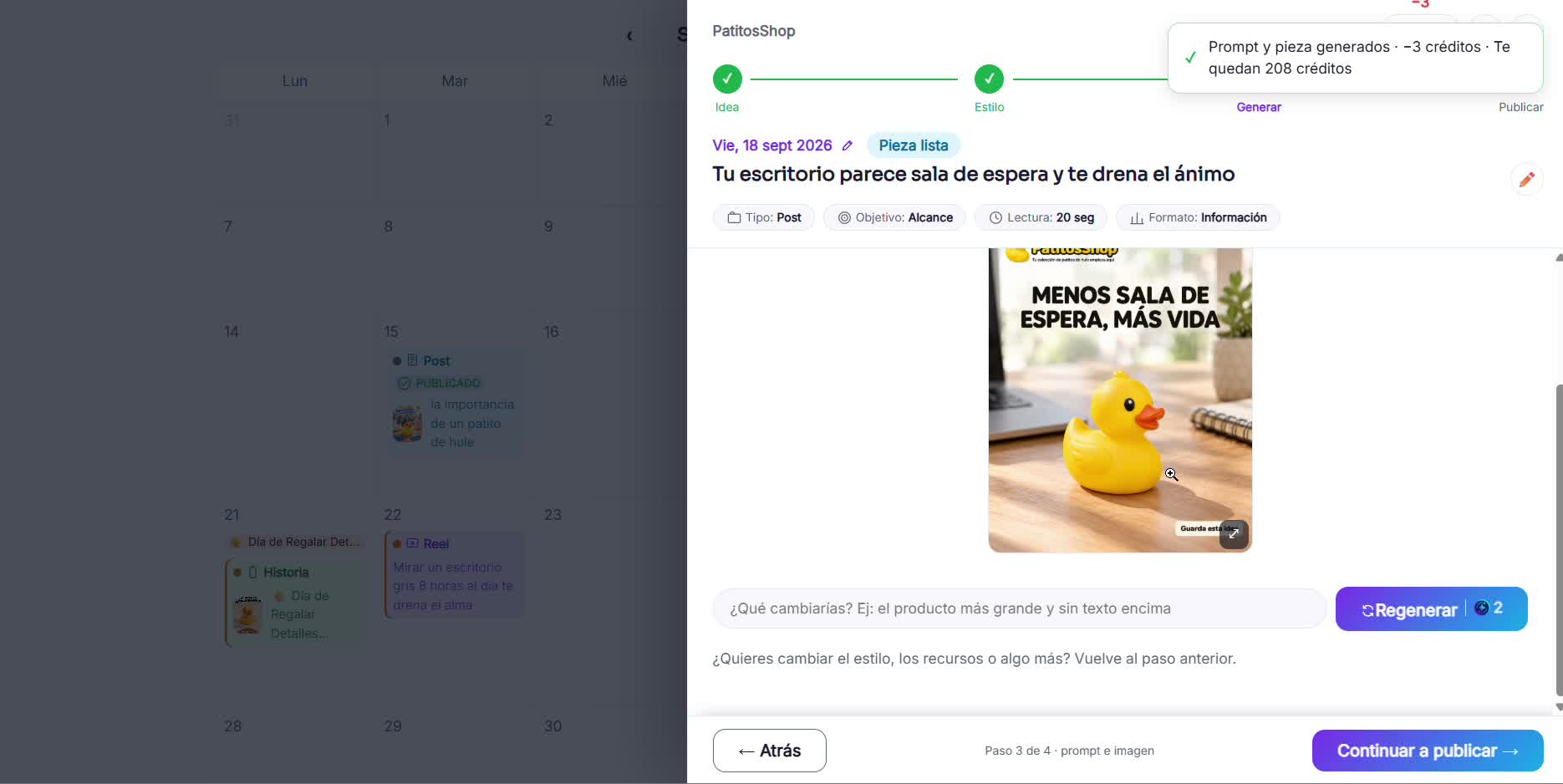
Compare the generated image with what you asked for. In this case, some of the products from the reference were missing.
- 4
Ask for the specific change and regenerate
Use the "What would you change?" field to ask for exactly what's missing, for example that all the products from the reference image appear.
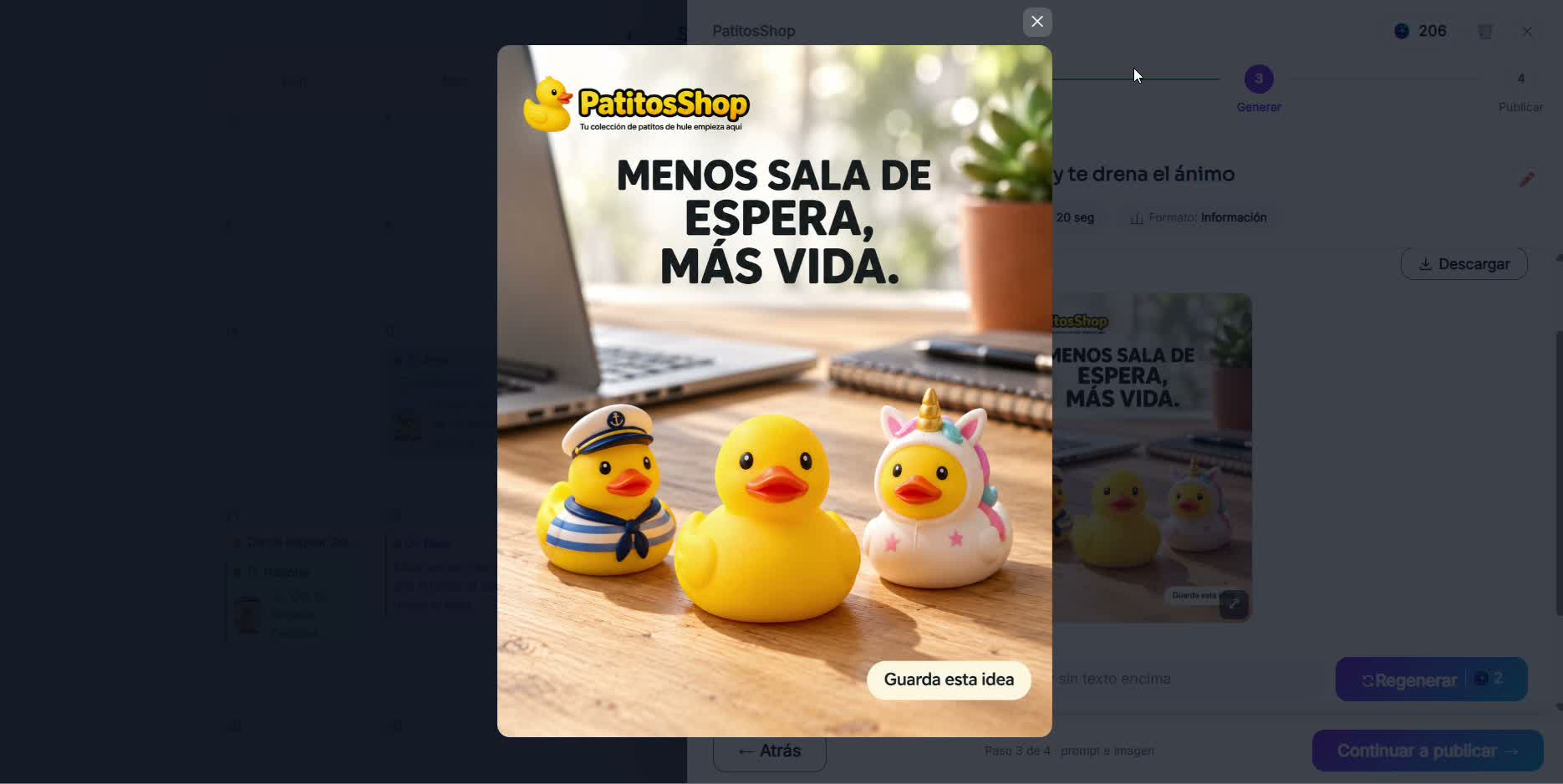 Be specific: take your time writing what you want to fix, because a typo can make the AI understand something else.
 - 5
Compare the versions and publish
Every regeneration is saved. Choose the version that worked and move on to publishing.