Get started with RedesIA in minutes
Here's what the product looks like inside, and the tasks worth doing as soon as you create your account to get the most out of it. When you sign up you land straight on an example calendar with a one-minute guided tour; whenever you're ready, you tell RedesIA about your business and that example content is replaced with your own.
Sign inHere's what it looks like inside
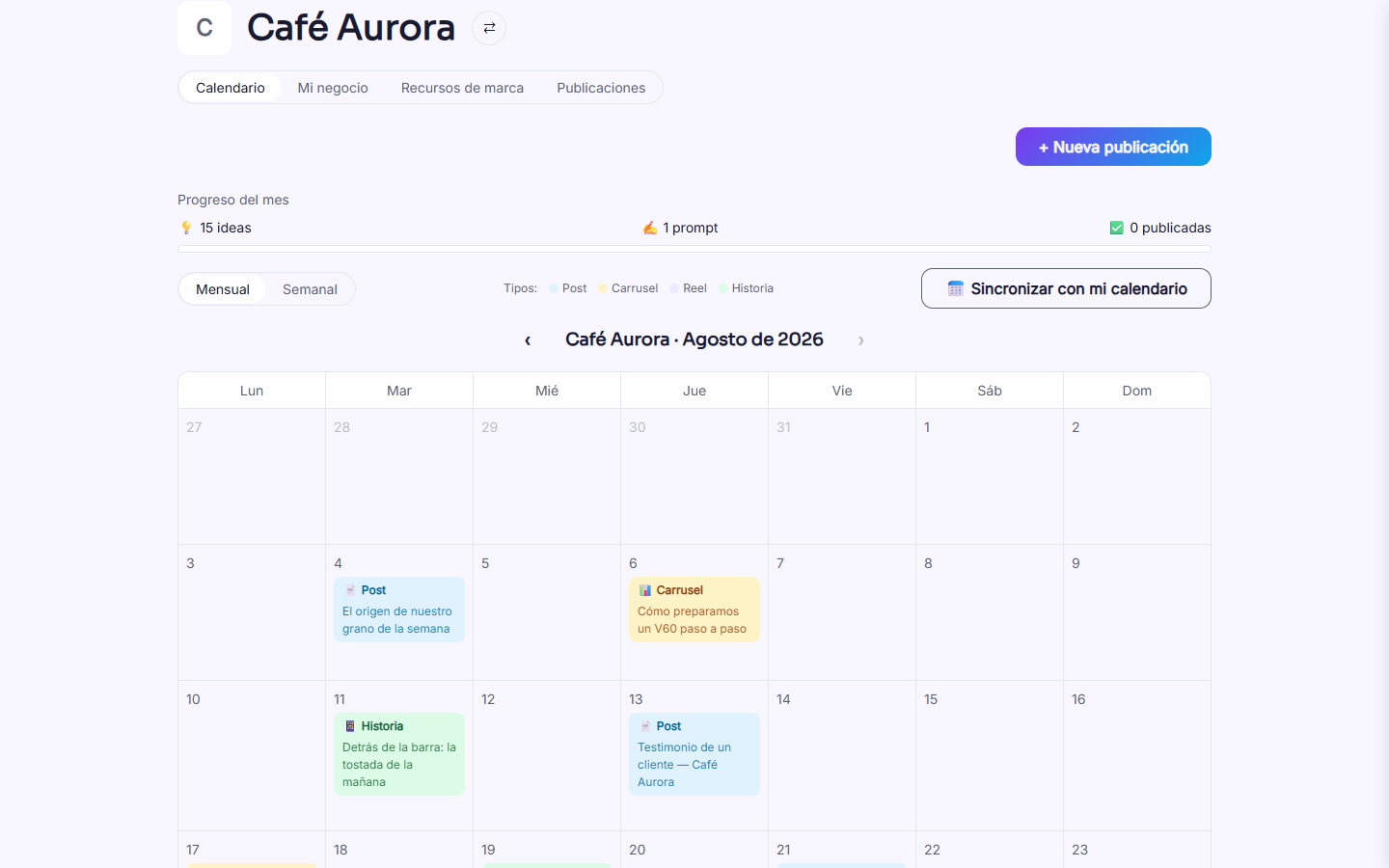
A month of posts in one click
You tell us about your business once — with your website, your photos and your own words — and we build your brand profile. From there, whenever you decide, we generate the week or the whole month — you choose the period and the formats (post, reel, carousel, story) — with a date for each post, and you can sync it with the calendar you already use.
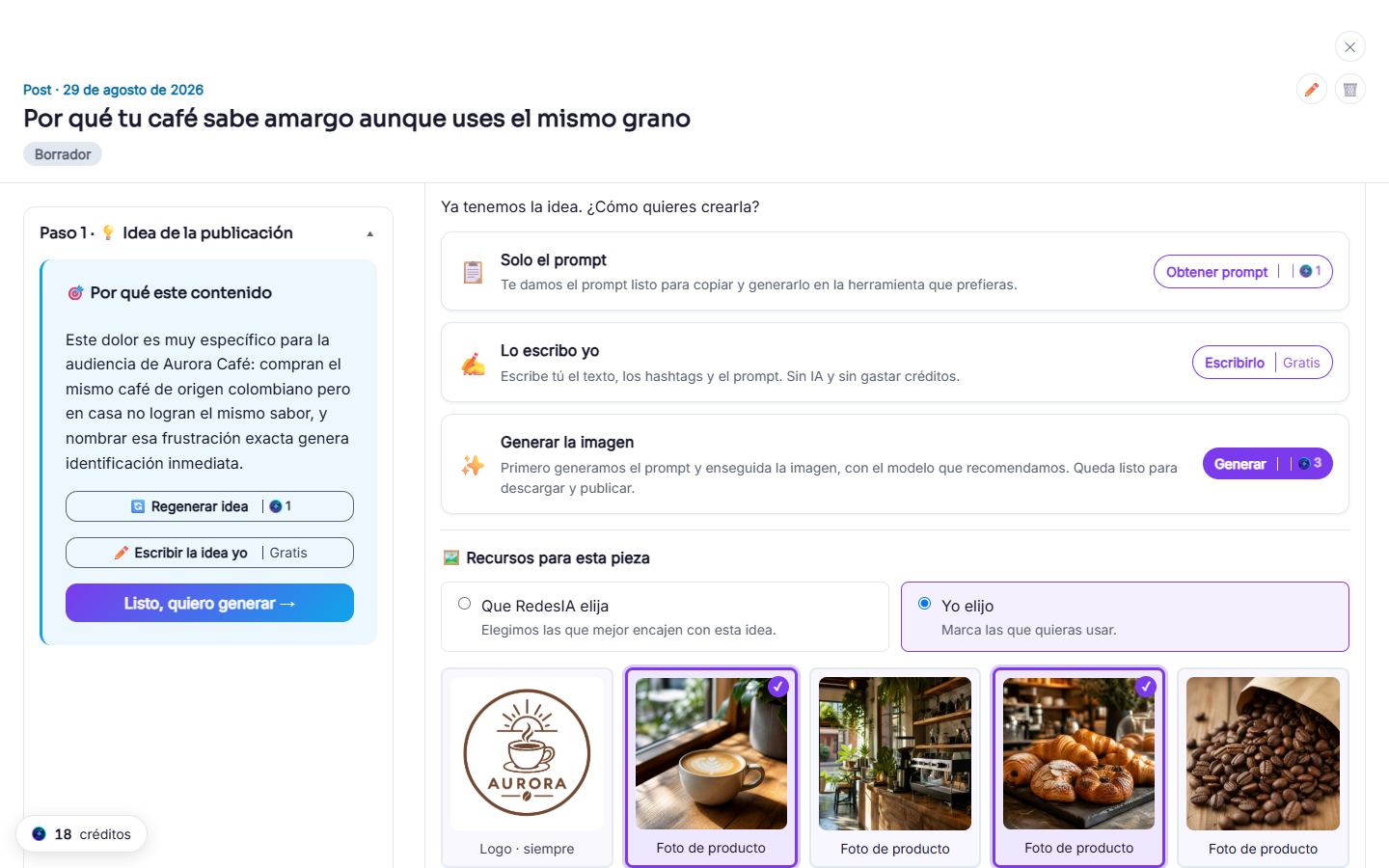
Four steps, one decision each
Each post opens in a four-step side panel, in the order you'd work through it, without losing sight of the month in front of you. First the idea, with the text and hashtags, which you can edit by hand or regenerate by telling us what you'd change. Then the style and resources: let us choose from your materials or pick the photos yourself, and if something is missing, drag it in right there and it's saved to your brand. Next you choose how to create the piece — with your credits right here, confirming the cost first; by writing it yourself at no cost; or by opening it in ChatGPT with the prompt already loaded. And at the end you see how it will look published on Instagram, Facebook or WhatsApp, with the steps to upload it.
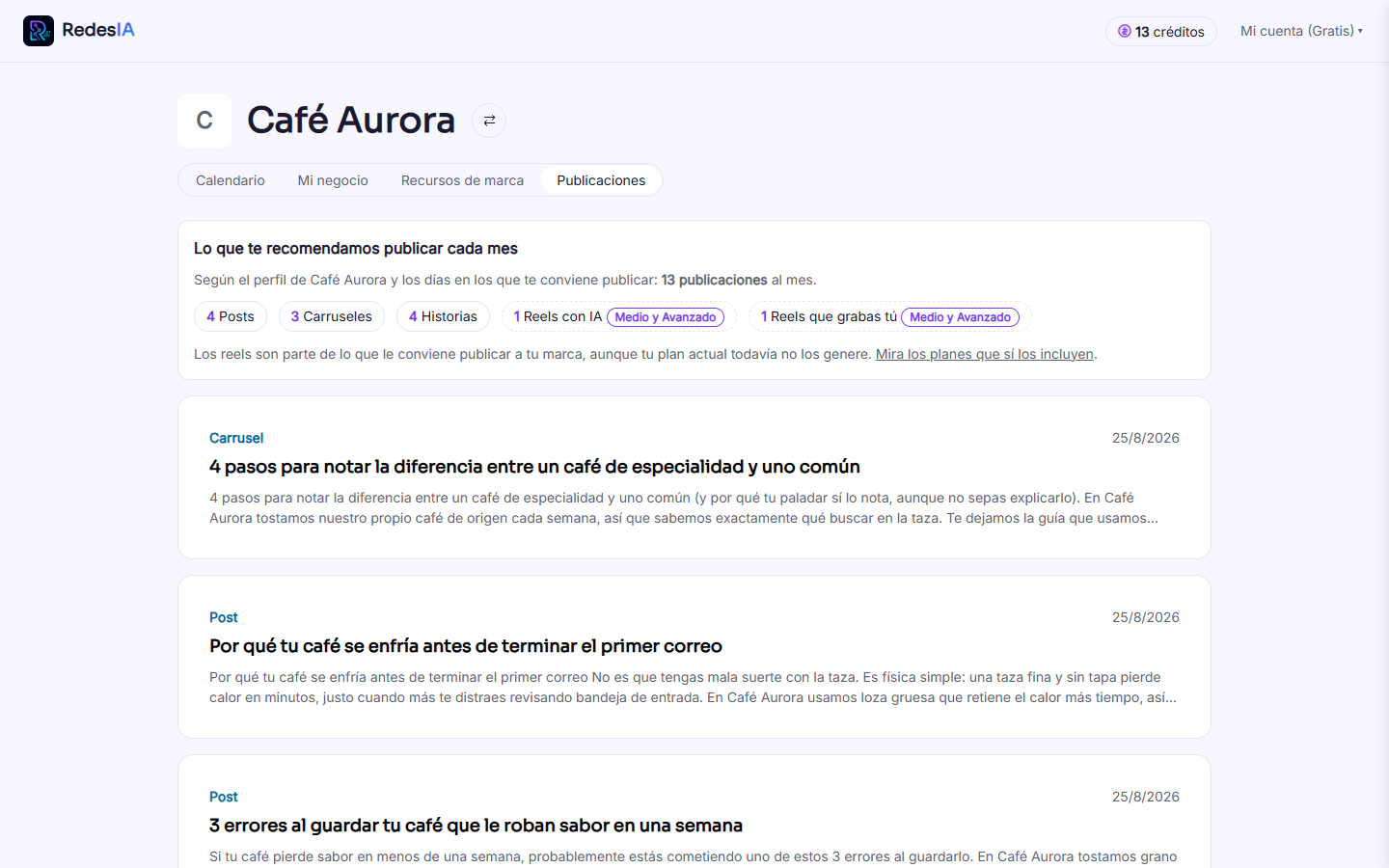
All your posts in one place
Go back to any generated post whenever you want, without having to hunt for it in the calendar. What we recommend you publish each month is always in view here too: how many posts, carousels, stories and reels suit your brand.
Get off to a good start
None of these are required, but they'll save you time (or headaches) later on.

Upload style examples you like
They don't have to be yours — upload photos from any brand whose visual style you like, and we use them as a style reference when generating your content. Everything you upload, here or from a post, is saved in Brand resources so you can use it again.
Go to my business
Turn on two-factor authentication
An extra security step for your account — we recommend turning it on as soon as you start.
Go to settings
Turn on browser notifications
We let you know when a pending post's date is getting close, right in your browser.
Go to settings
Add your calendar to Google Calendar
Copy the link to your RedesIA calendar and add it in Google Calendar to see your pending posts alongside the rest of your schedule.
Go to settingsHow to subscribe to the calendar from Google Calendar
- Copy your calendar link from Settings in RedesIA.
- In Google Calendar, go to Other calendars → the + icon → From URL.
- Paste the link and confirm.
- Your posts will show up in Google Calendar (read-only — they can't be edited from there, and it can take a few hours to update).