Resources · Images and prompts
Sizes and formats that don't get cropped
Keep your image from looking cropped in the feed, stories or reels.
Steps
The screenshots show RedesIA and the other apps with their interface in Spanish; the steps are the same in English.
- 1
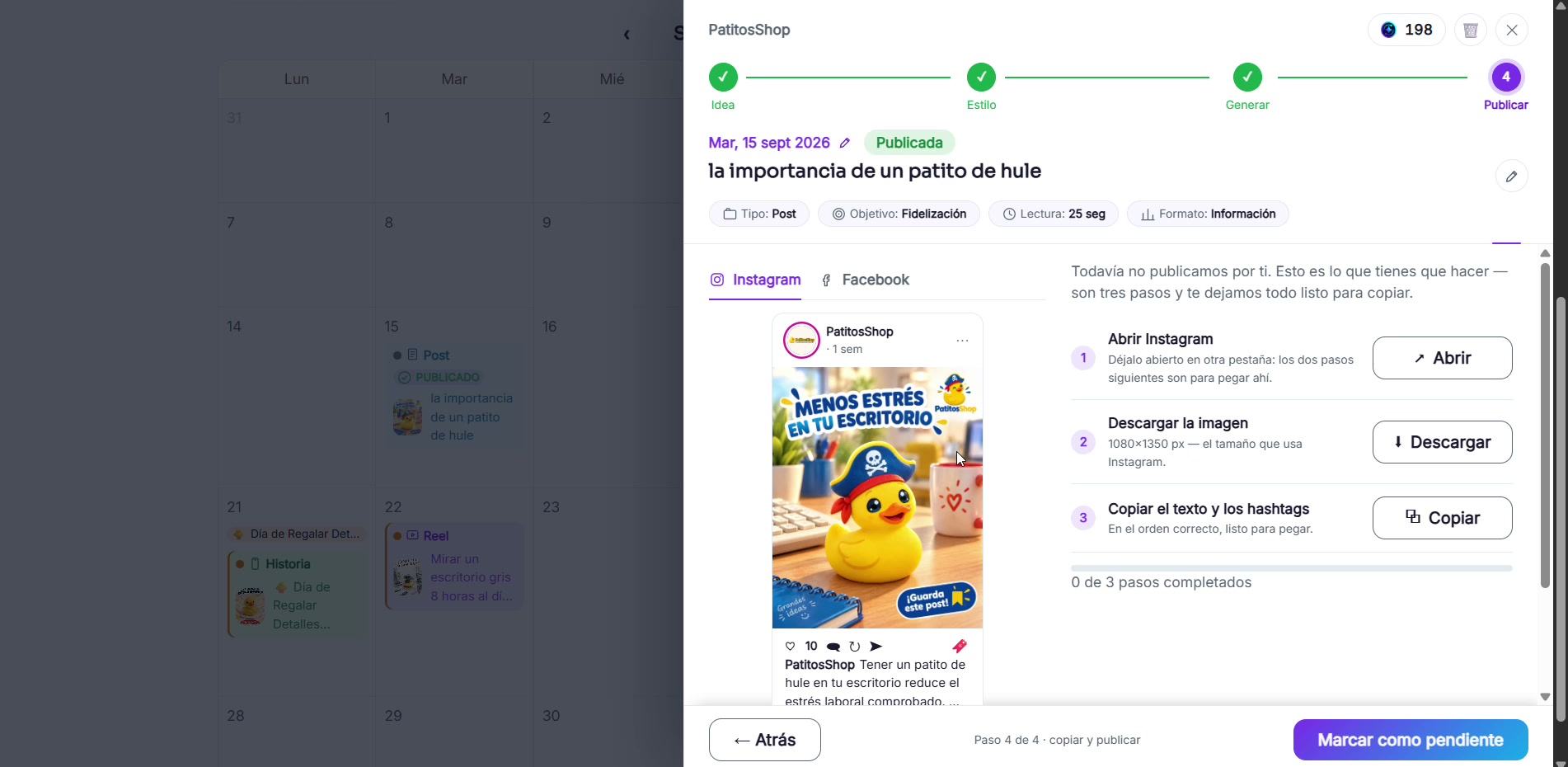
RedesIA already uses the right size for each format
Each post tells you the exact size that network needs, for example 1080×1350 px for an Instagram post.
- 2
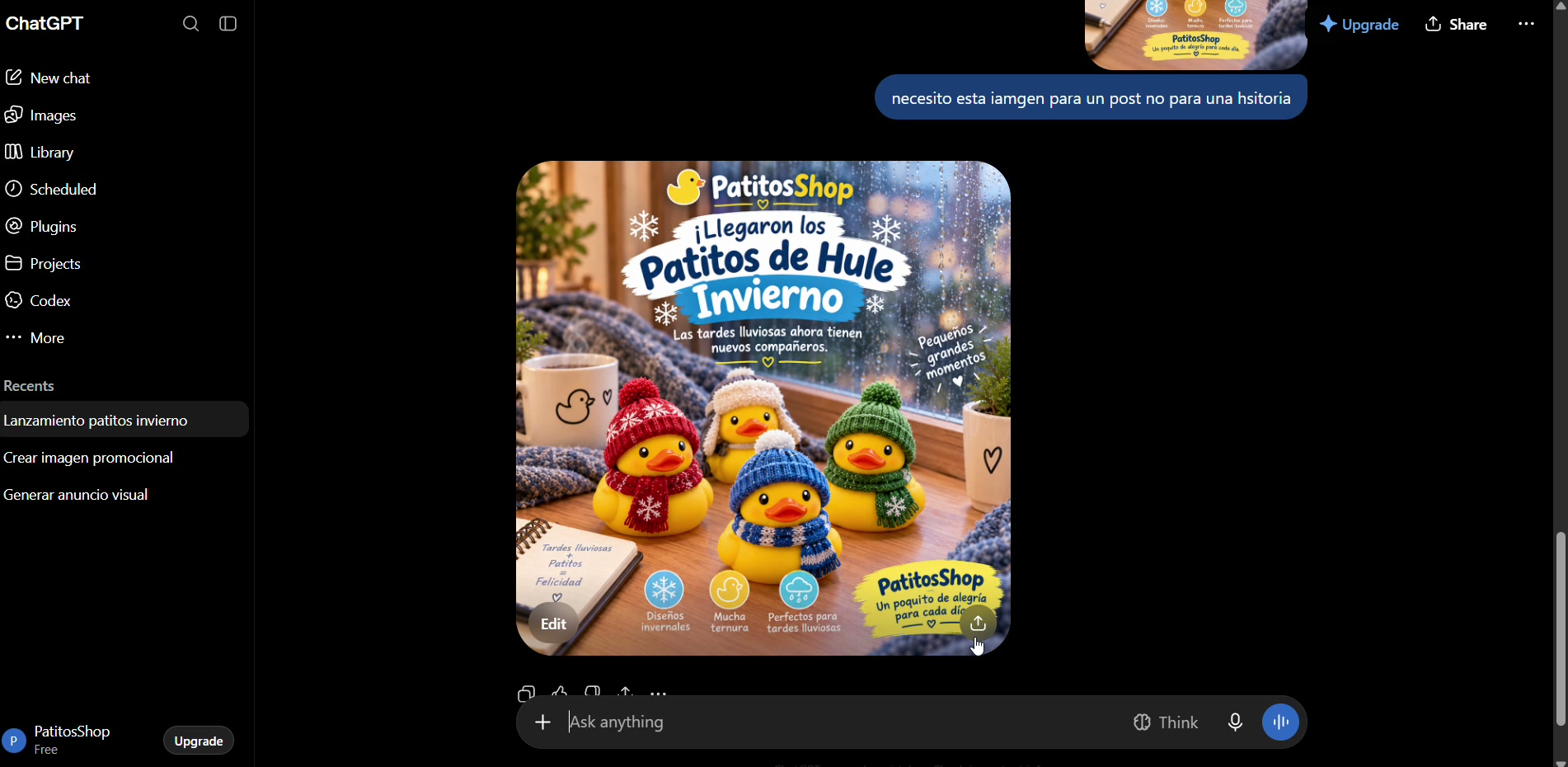
If you use another tool, tell it the exact size
Say whether the image is for a post, a story or a reel. Don't assume the AI knows.
- 3
One size doesn't fit everything
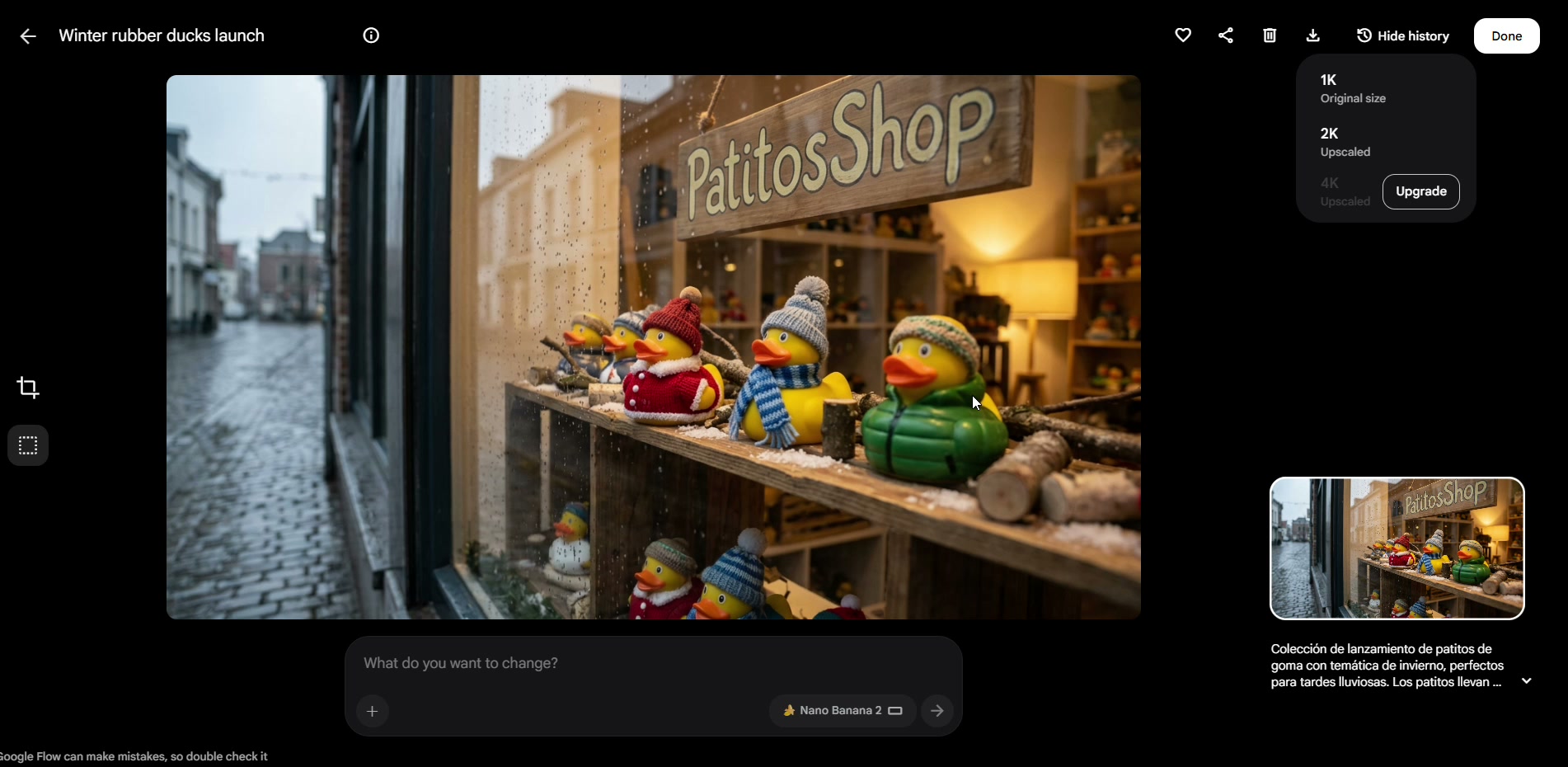
An image made for video or another format doesn't work as a post or a story, so you have to ask for the right size from the start.
- 4
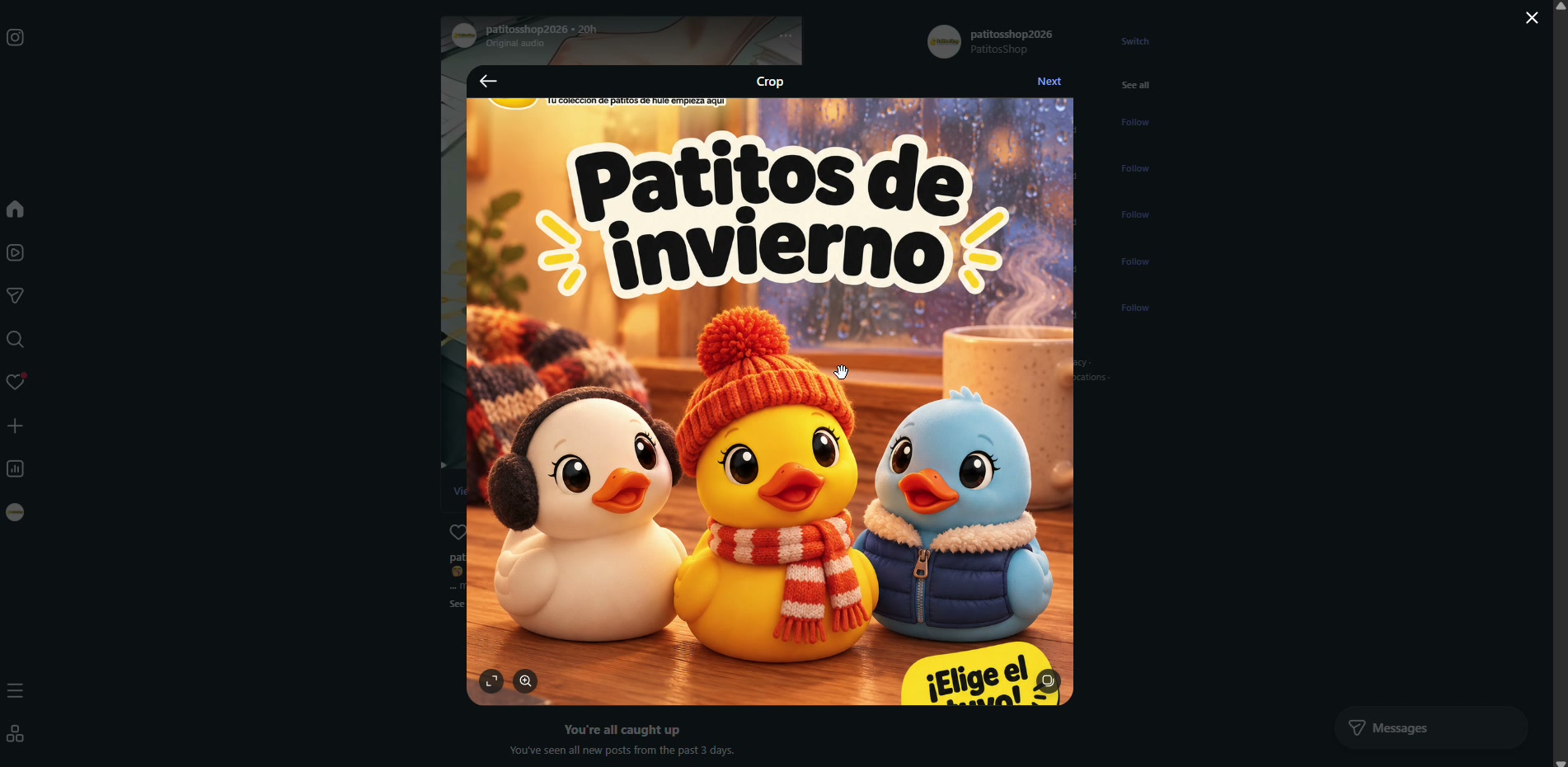
Uploading the wrong size crops the image
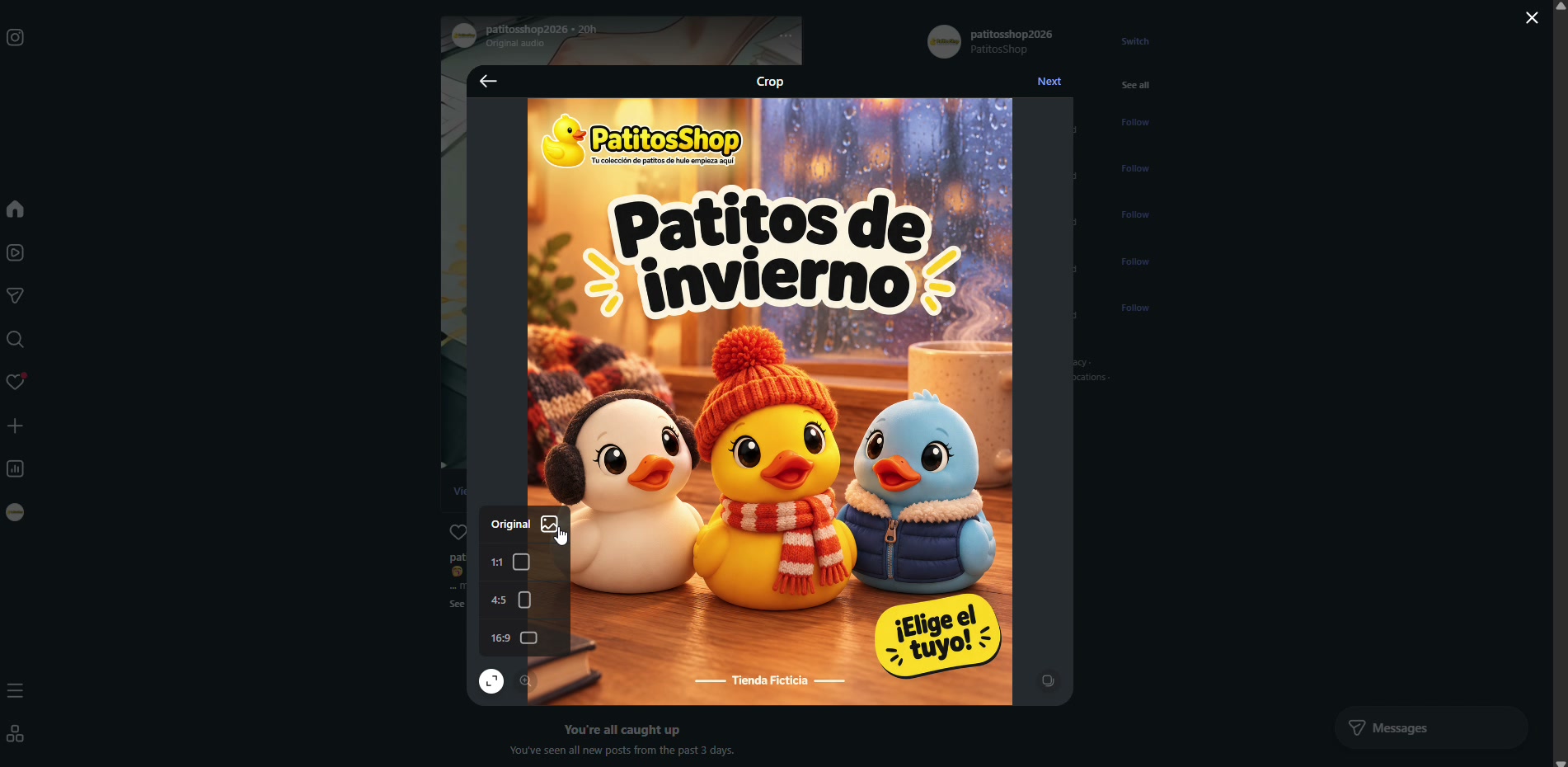
Instagram crops automatically if the size doesn't match. Here, the logo at the top and the sticker at the bottom get lost.
- 5
Select "Original" so it doesn't get cropped
When the image already comes in the right size, choose the "Original" option when you upload it so it shows in full.