Edit your post in Canva
Take the design RedesIA generated into Canva and adjust it to the format you need.
Steps
The screenshots show RedesIA and the other apps with their interface in Spanish; the steps are the same in English.
- 1
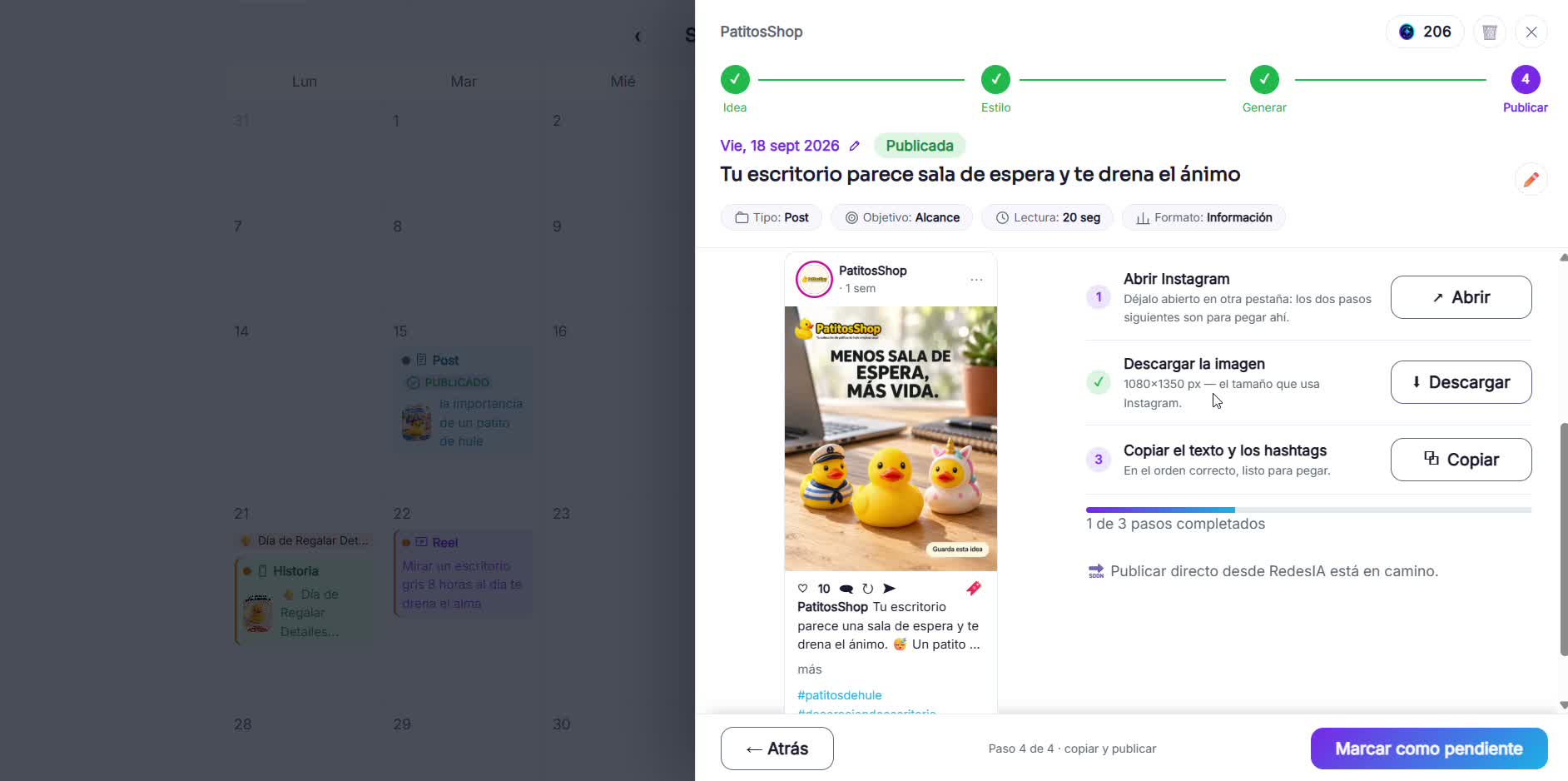
Download the design from RedesIA
From the generated post, use the download button so it's ready to upload to Canva.
- 2
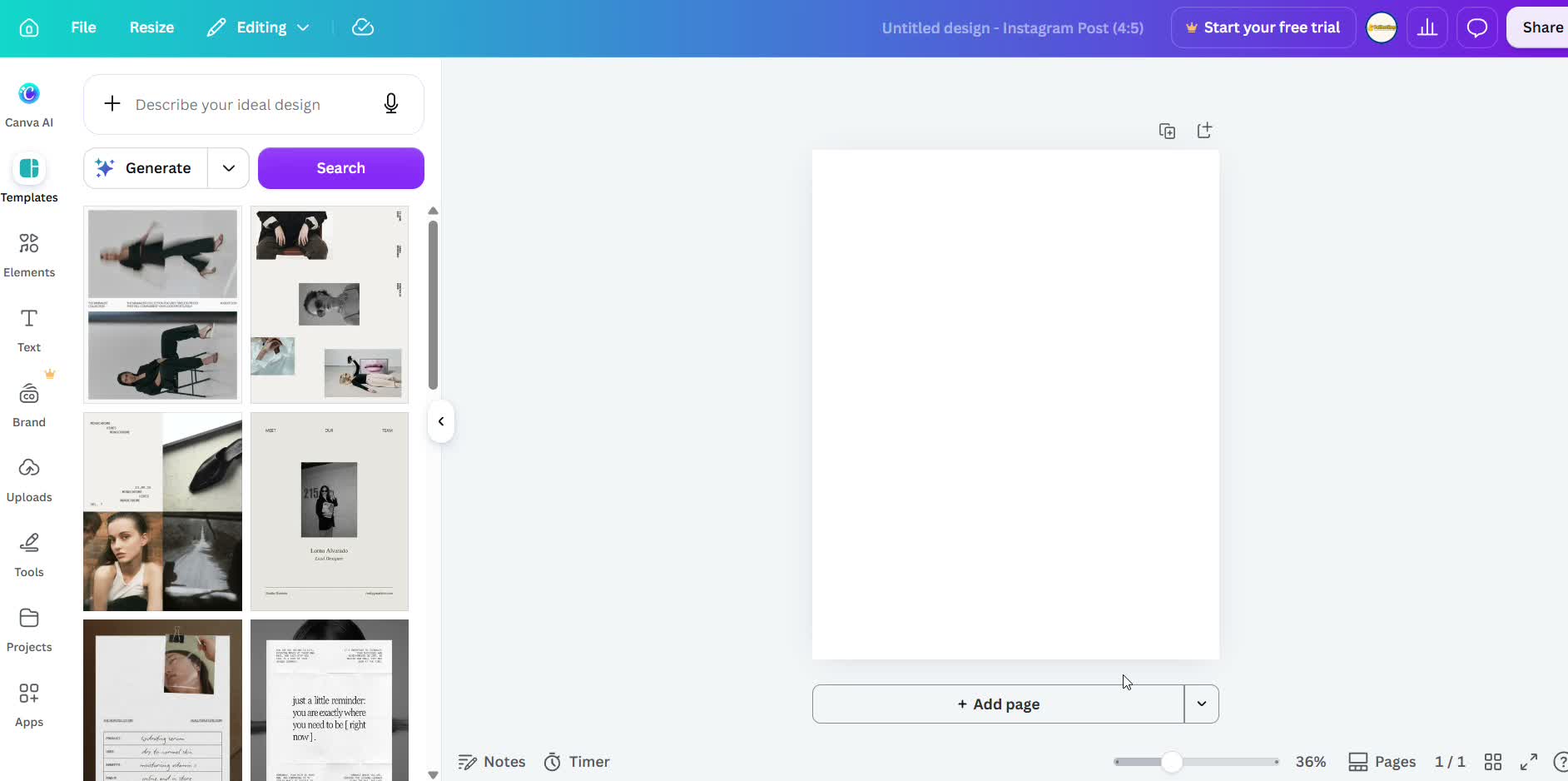
Open Canva and choose the format
Search for "Social media" and pick the type of post (Instagram Post, Story, etc.) that you need.
- 3
Upload the image and edit the text
Drag the image to fit the template size, and tap any text to change it without losing the original design.
- 4
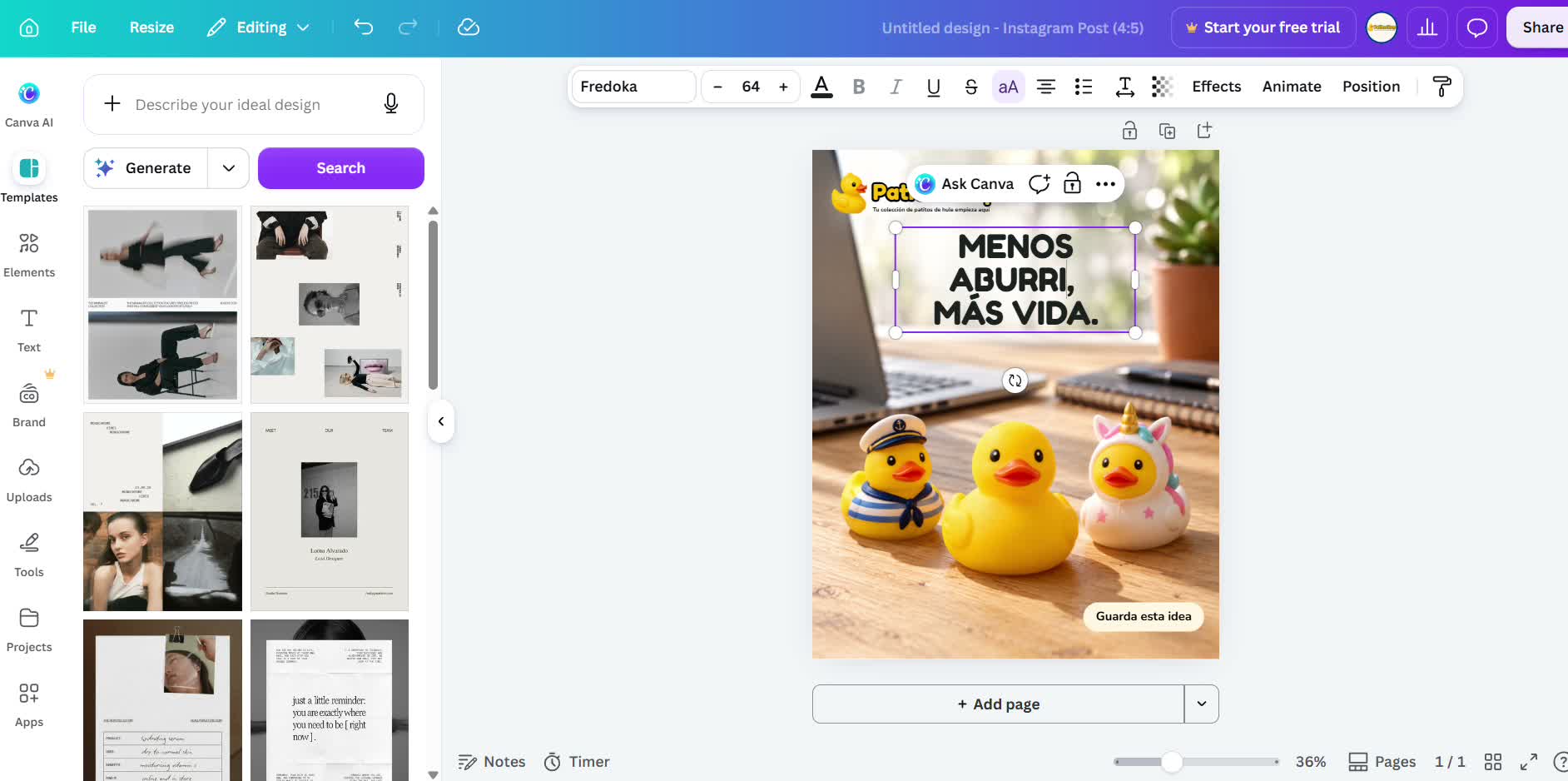
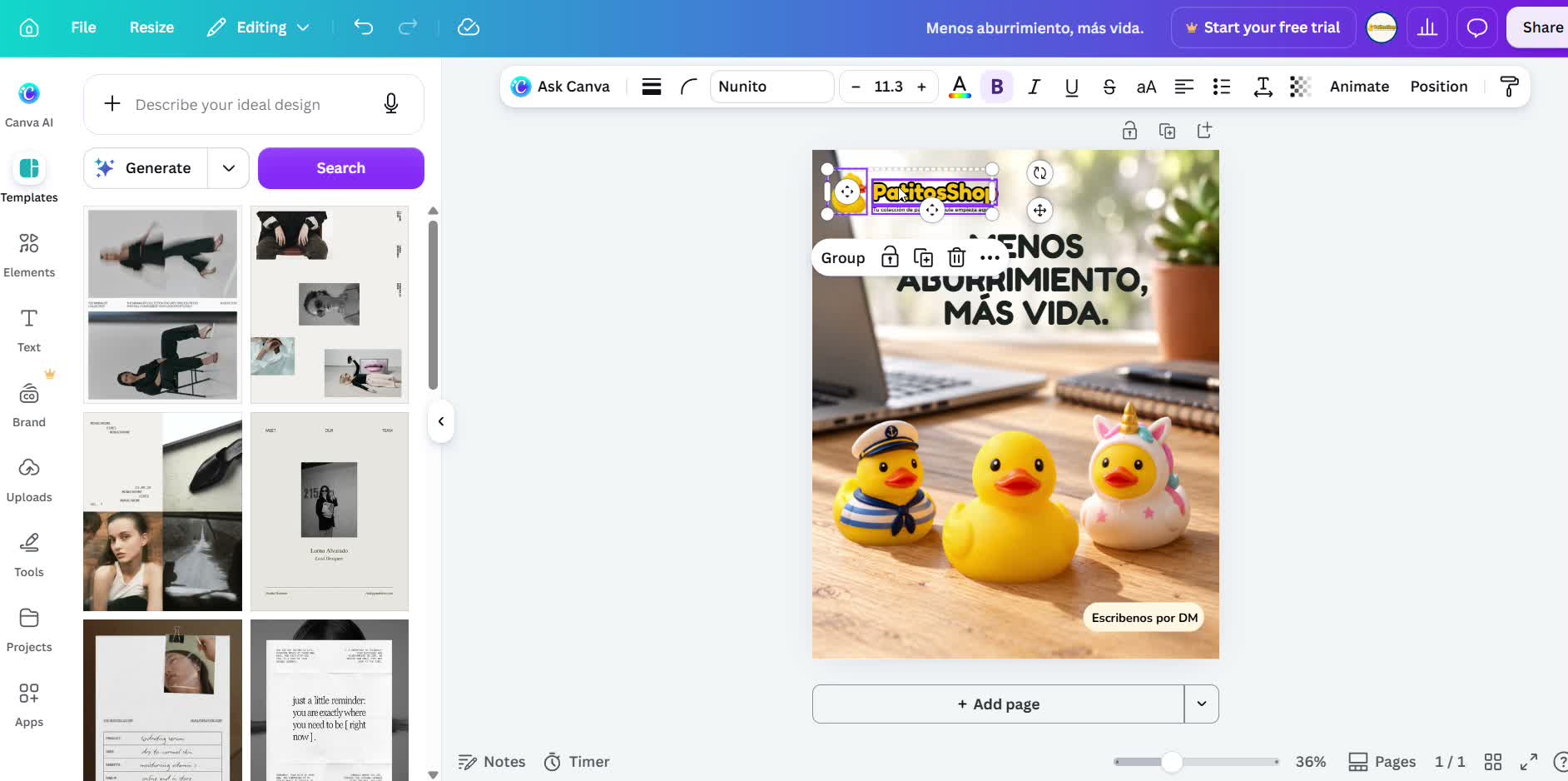
Move the elements you want
Group and drag the logo, the products or any other element wherever you like. That's how you learn to edit inside a single design.
- 5
Use the editing tools
Use Eraser (free) to remove small details, or BG Remover and Replace if you have a paid plan. Features marked with a crown require a subscription.
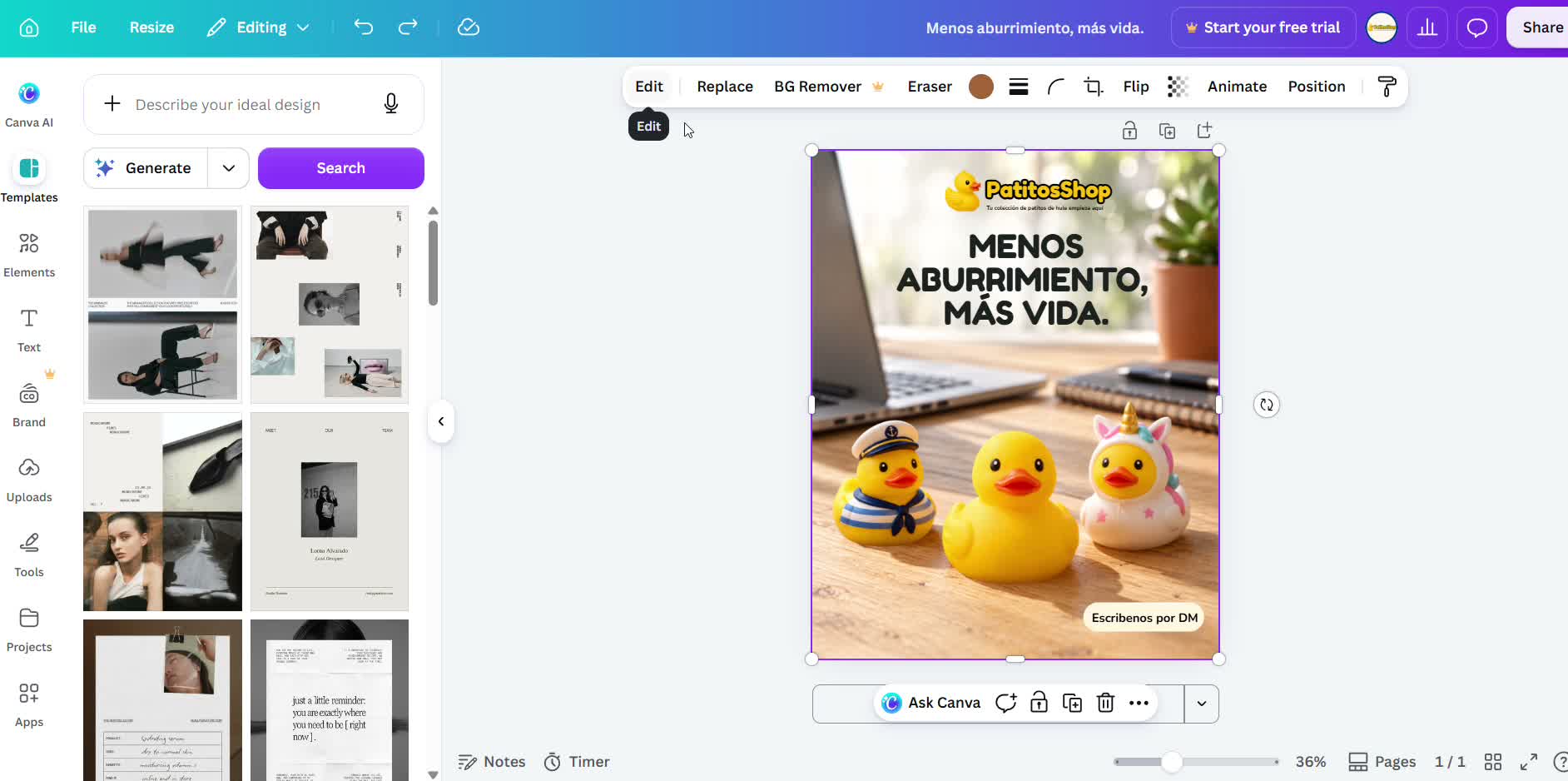 The free eraser can leave the image a little pixelated in complex areas, so check the result before you use it.