Resources · Canva
Edit a simple Reel in Canva
Cuts, text and basic music to put together a Reel without the hassle.
Steps
The screenshots show RedesIA and the other apps with their interface in Spanish; the steps are the same in English.
- 1
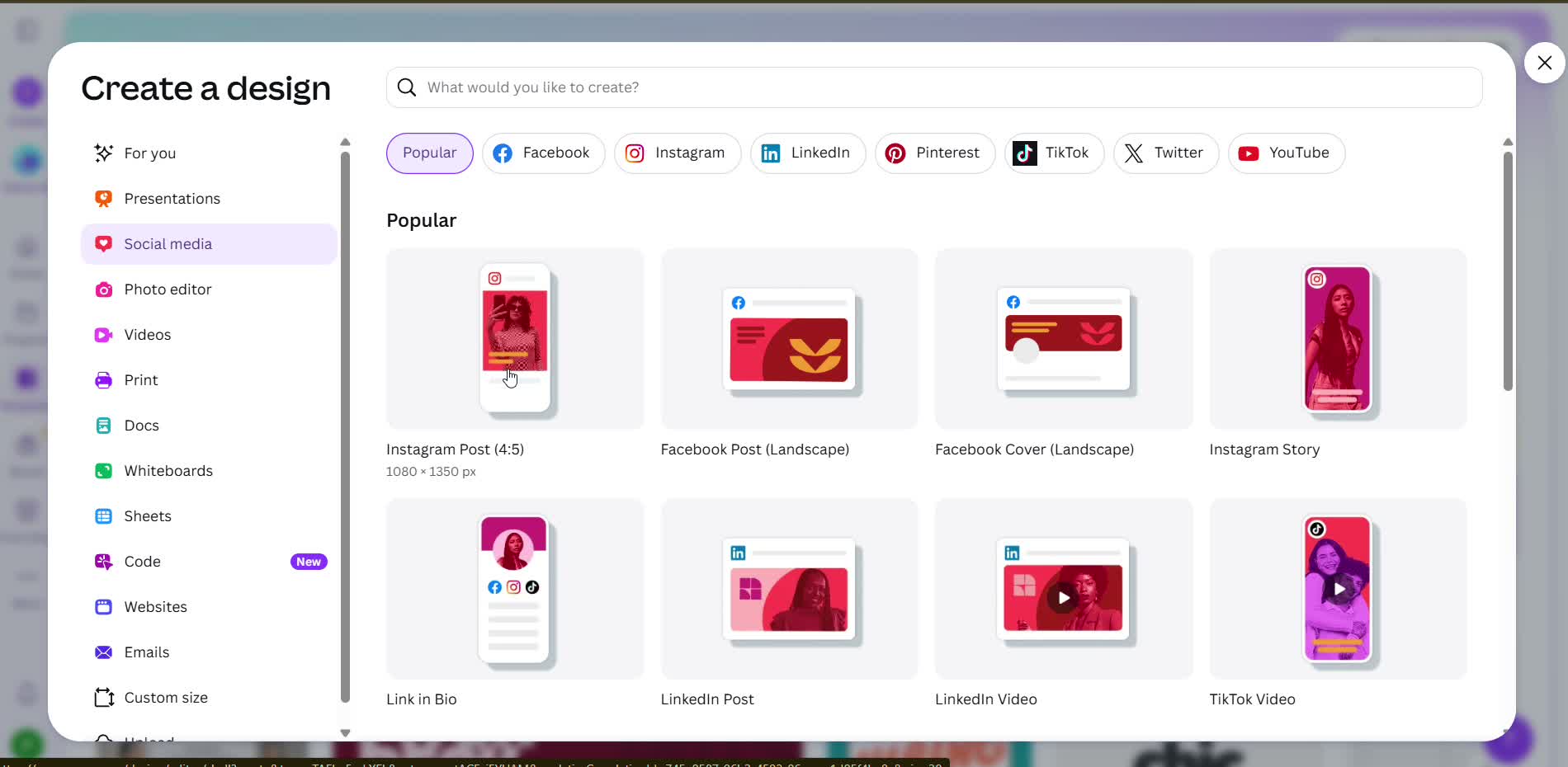
Choose your Reel size
Search for "Instagram Reel" or "TikTok Video" in Canva. Either one works for the other too.
- 2
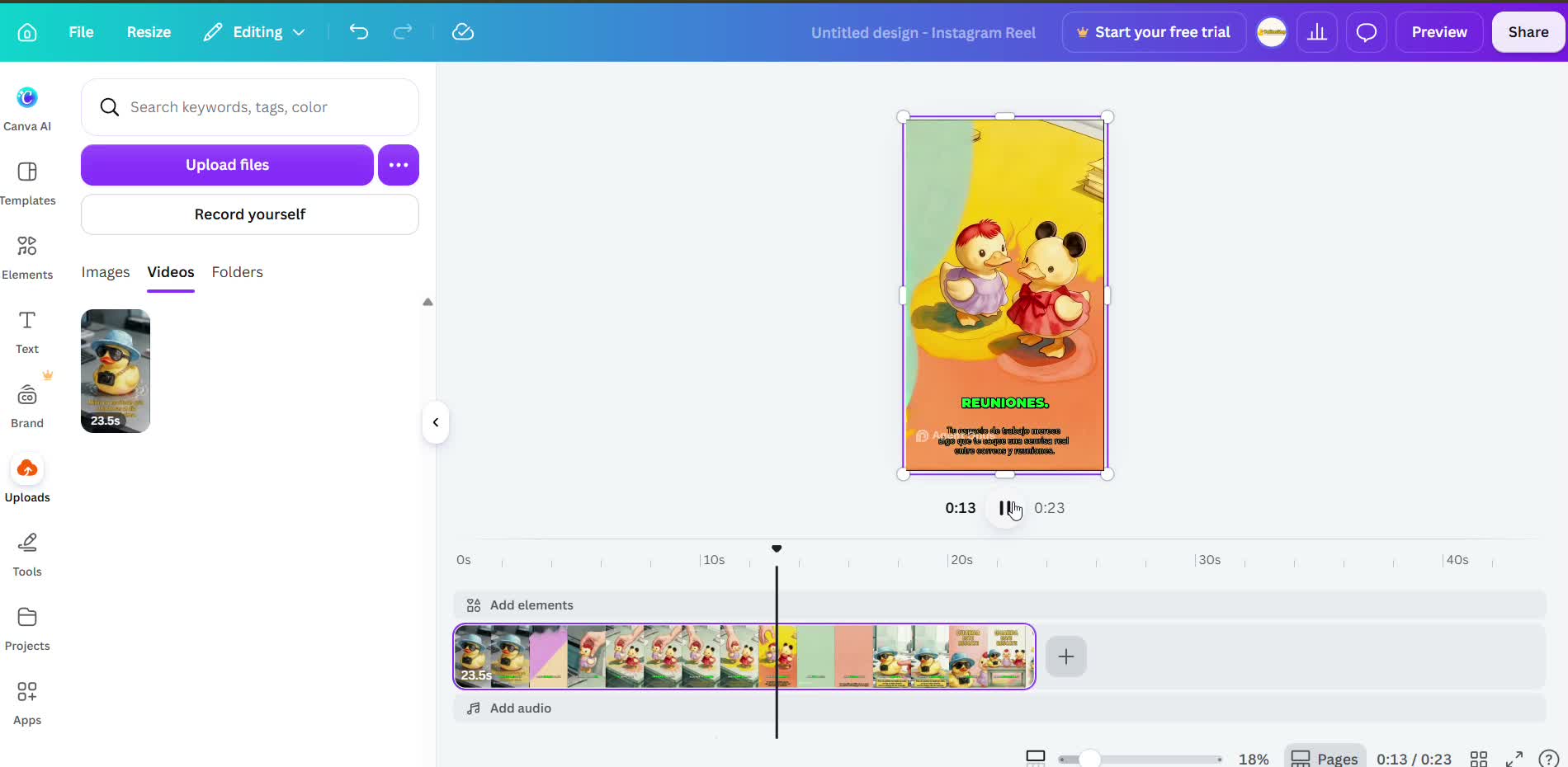
Upload the video you already recorded
Upload the Reel you generated (with the RedesIA script) or the one you filmed yourself, and add it to the timeline.
- 3
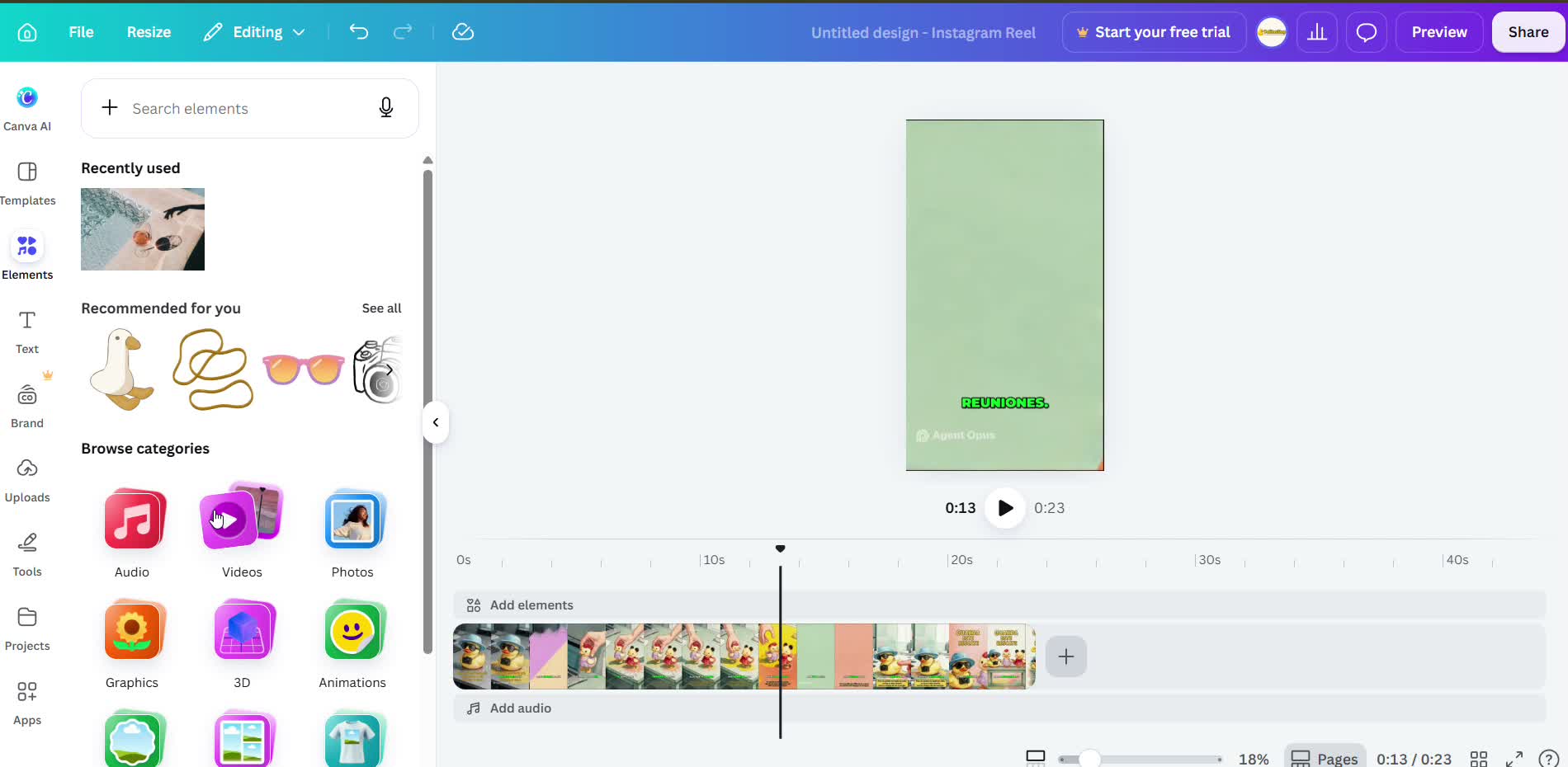
Add audio or music if needed
If the video doesn't have good audio, you can record your voice right in Canva. The free music library is pretty limited, and most of the best tracks need a paid plan.
- 4
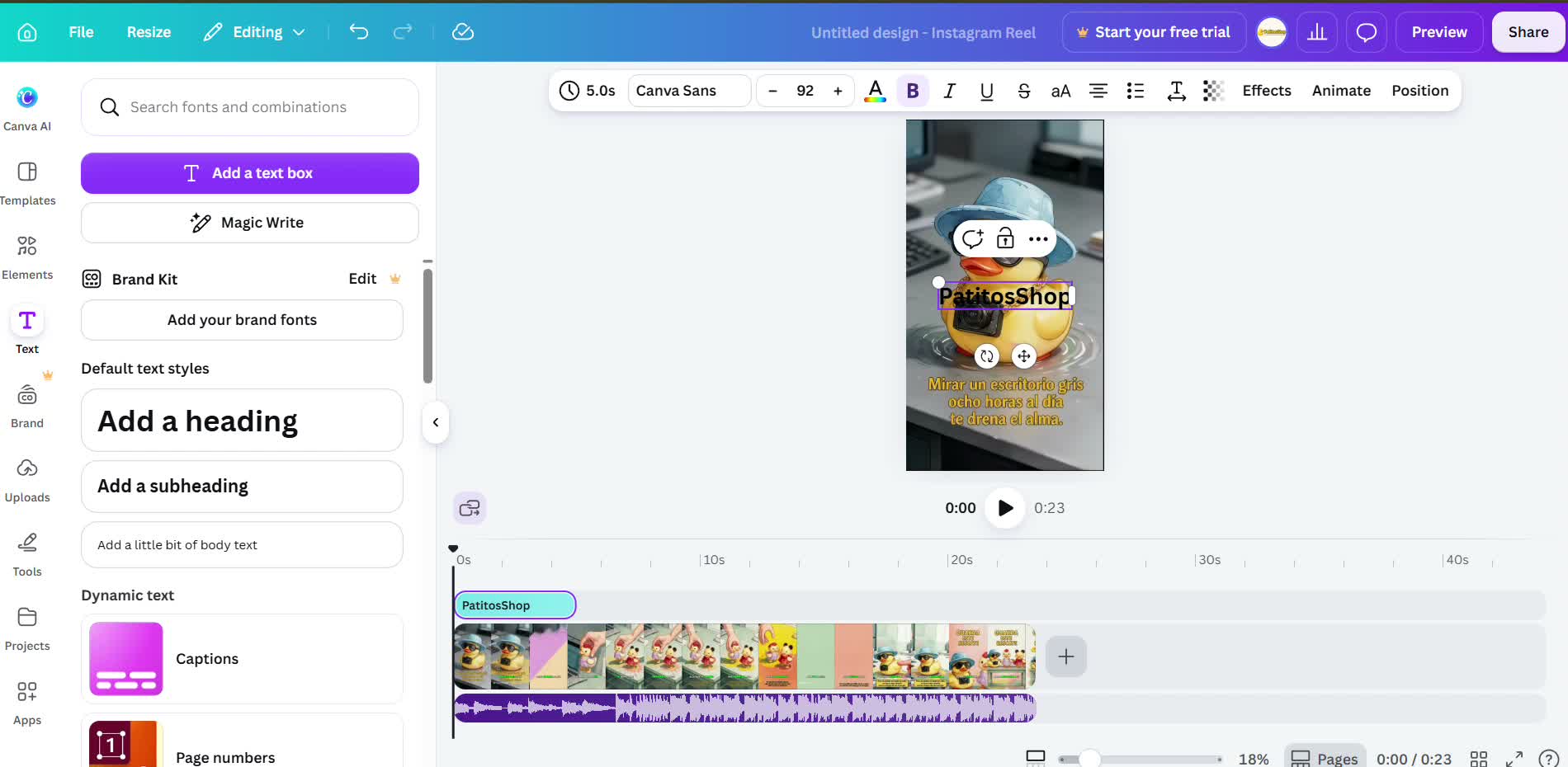
Add on-screen text
Highlight the key points with animated text at the important moments.
- 5
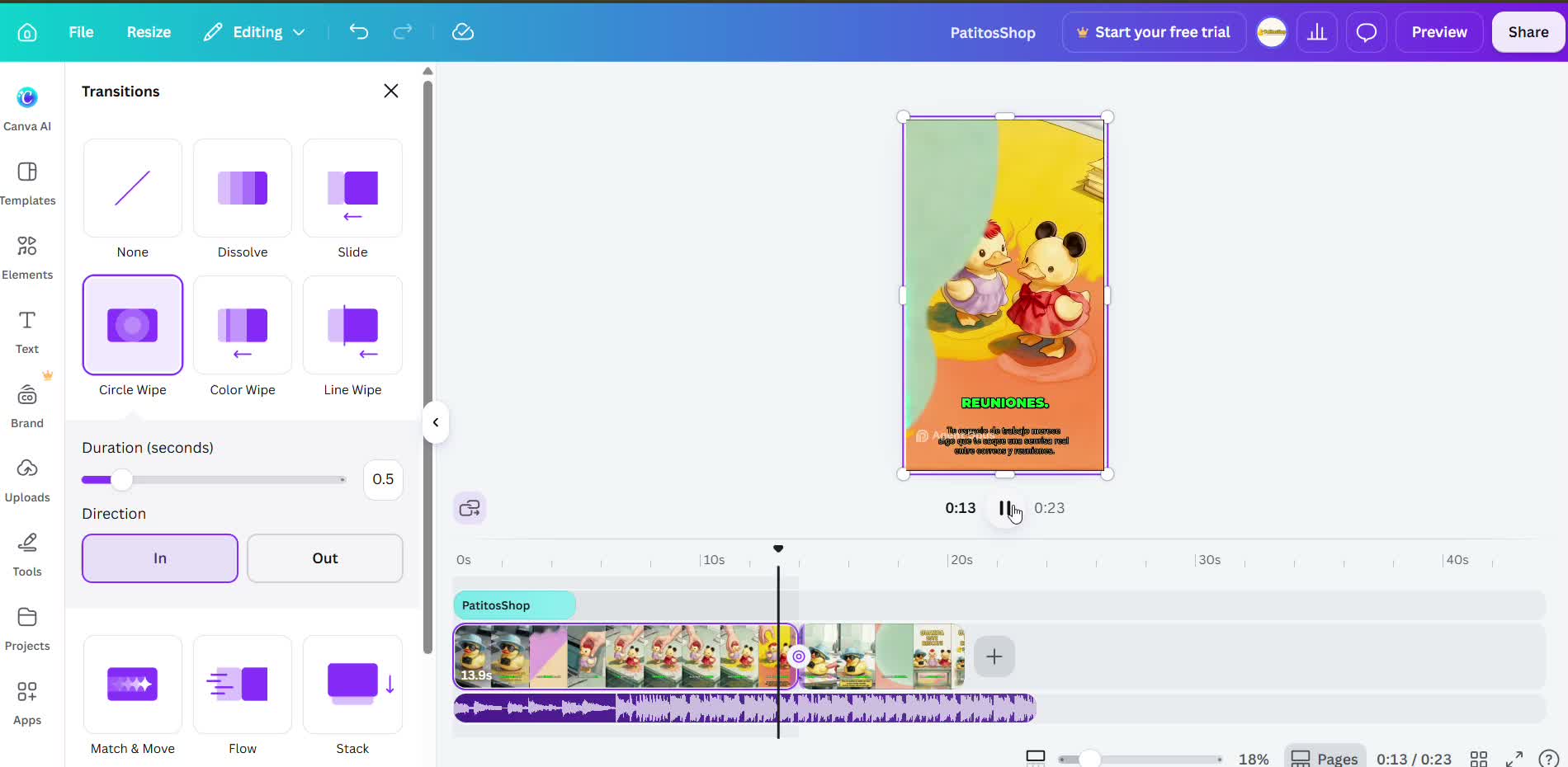
Trim what doesn't work and add transitions
Cut the parts you don't like and add a simple transition between scenes before you download.