Resources · Instagram-Facebook
Publish your post on Instagram and Facebook
With the image and text already generated in RedesIA, publishing on both networks takes a couple of minutes.
Steps
The screenshots show RedesIA and the other apps with their interface in Spanish; the steps are the same in English.
- 1
Publish on Instagram
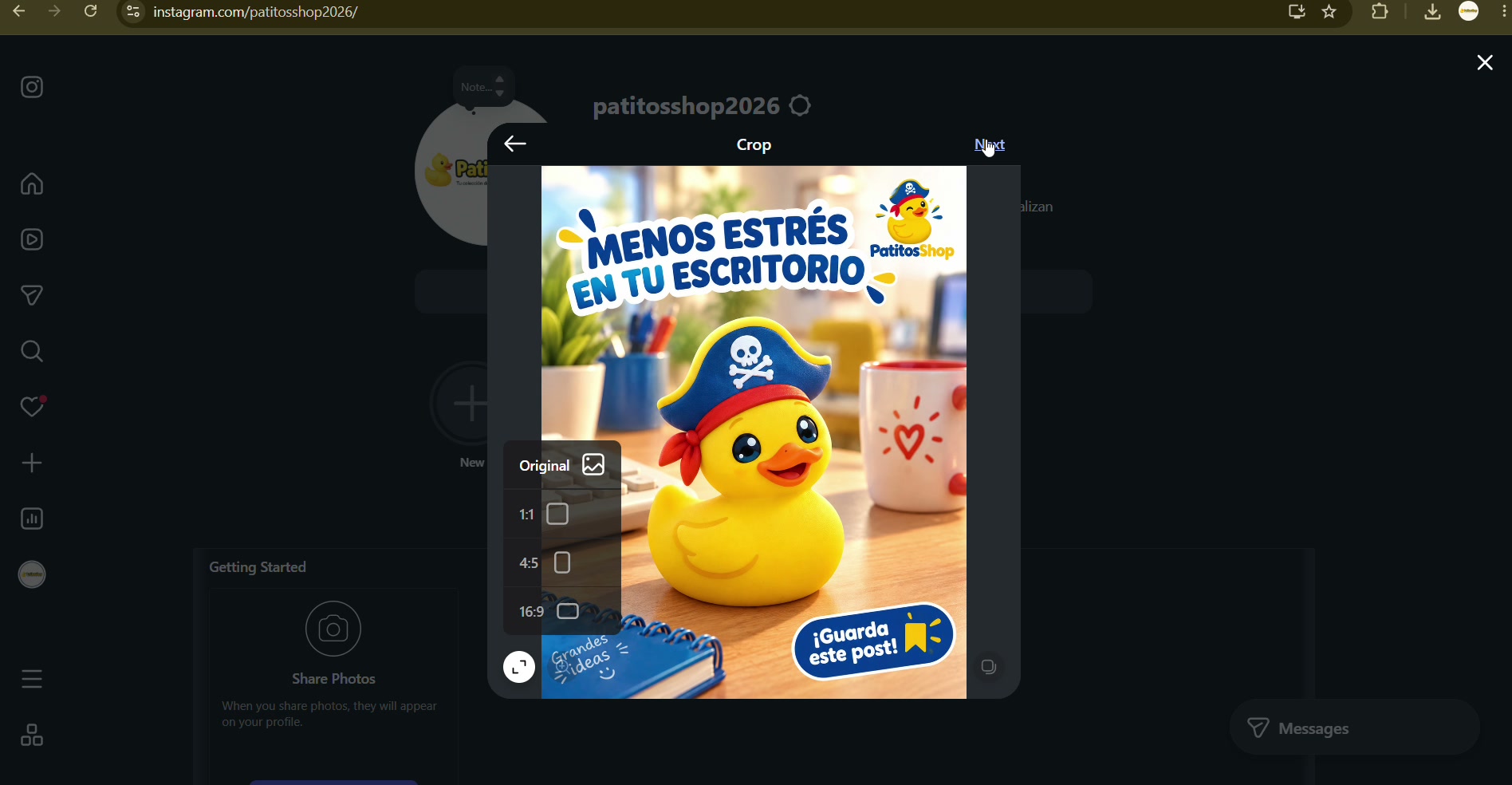
Upload the image you downloaded, choose the "Original" crop so it doesn't get cut off, and paste the text and hashtags you copied.
- 2
Publish on Facebook
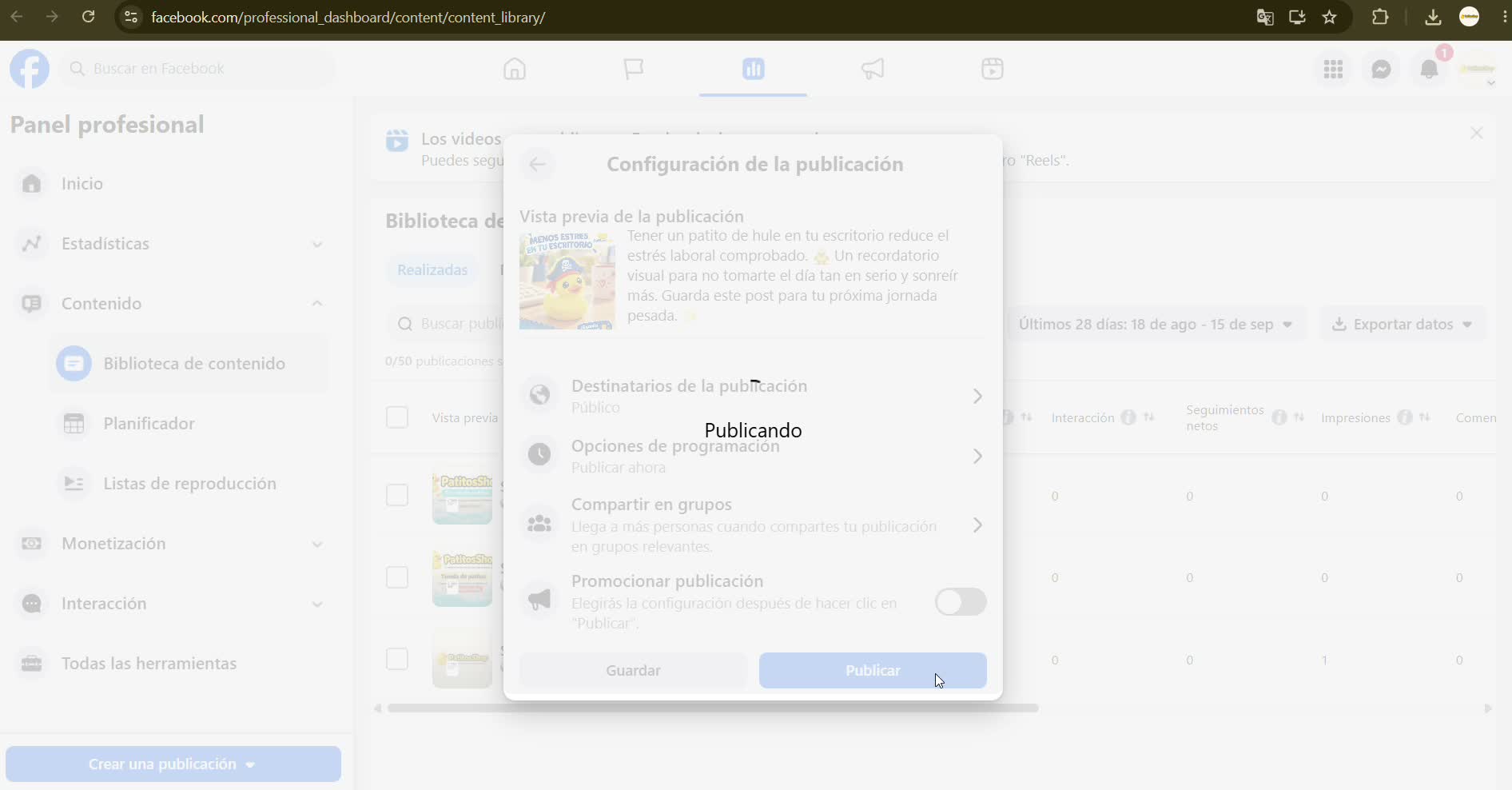
From the Professional dashboard, create a post with the same image and the same text you used on Instagram — there's no need to generate anything different. Check the preview and hit "Post".
- 3
Mark the post as published
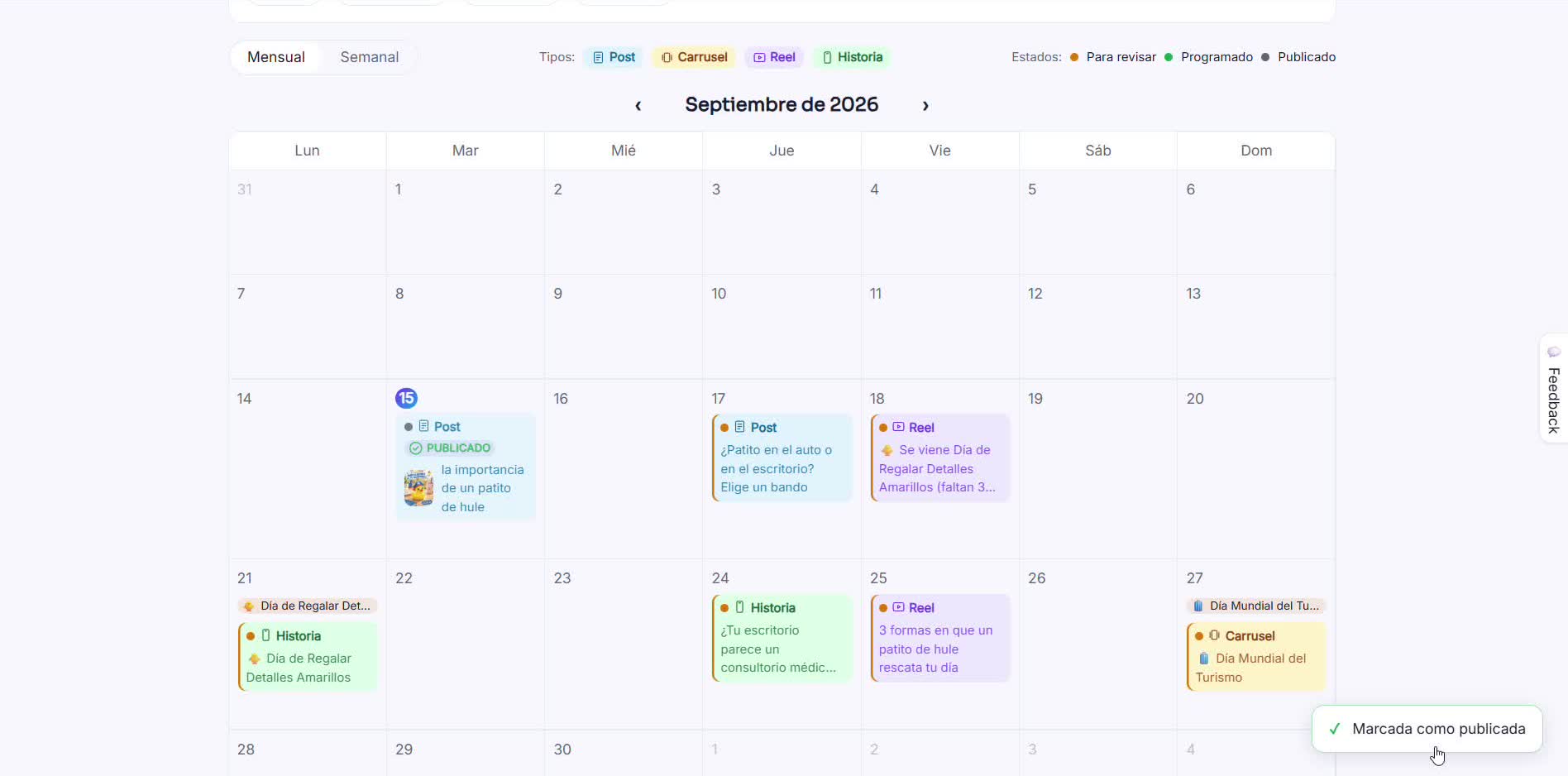
With both published, go back to RedesIA and click "Mark as published" to keep track of your calendar.