How to generate a post
From the idea on the calendar to a piece ready to publish, step by step.
Steps
The screenshots show RedesIA and the other apps with their interface in Spanish; the steps are the same in English.
- 1
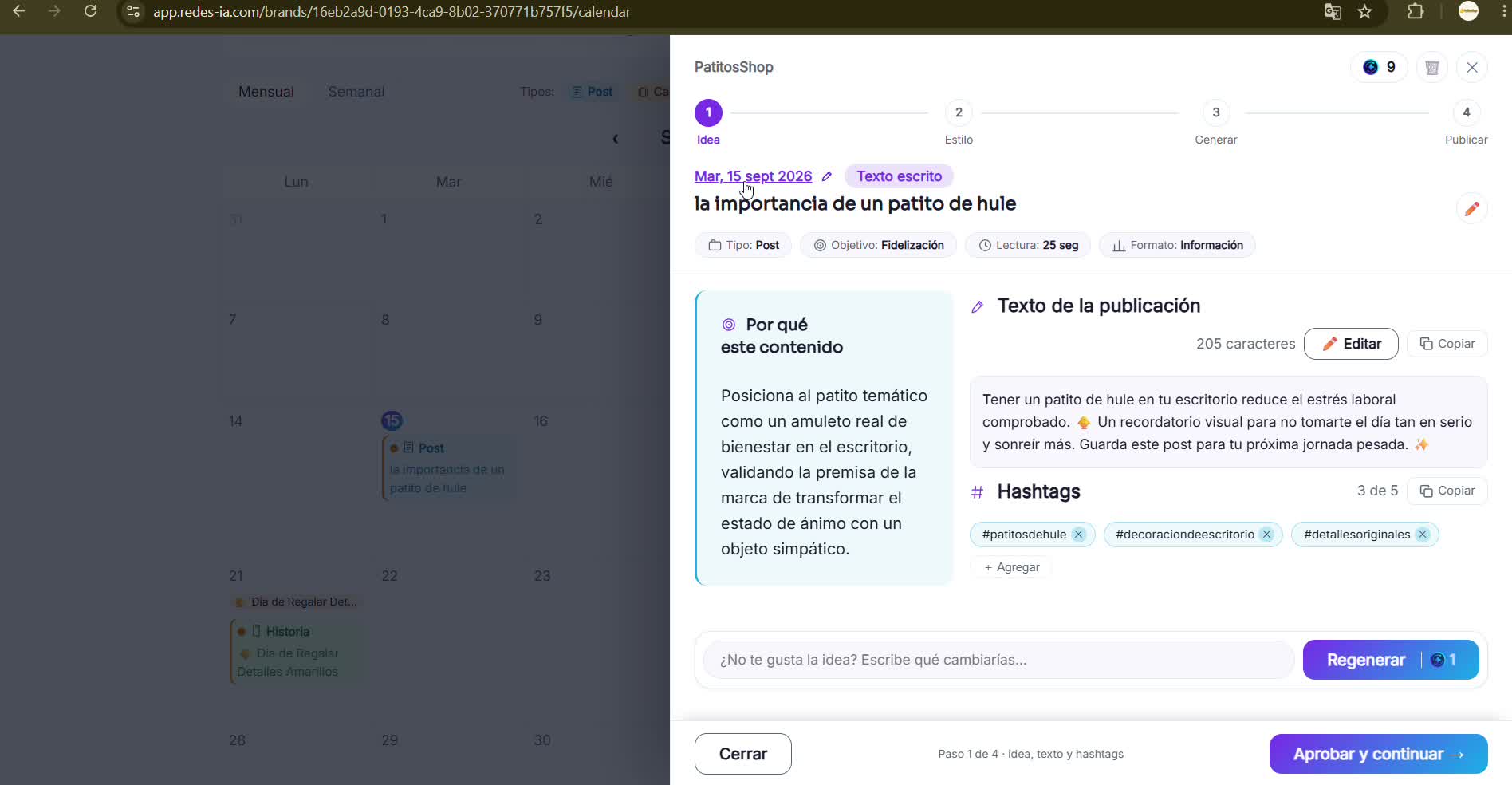
Open the idea from your calendar
Every post already comes with the generated text and hashtags, plus an explanation of "Why this content" based on your brand.
- 2
Don't like the text? Edit it or regenerate it
With "Edit" you change it yourself. With "Regenerate" you tell it what to adjust (for example, remove a word or change the angle) and RedesIA writes you a new version.
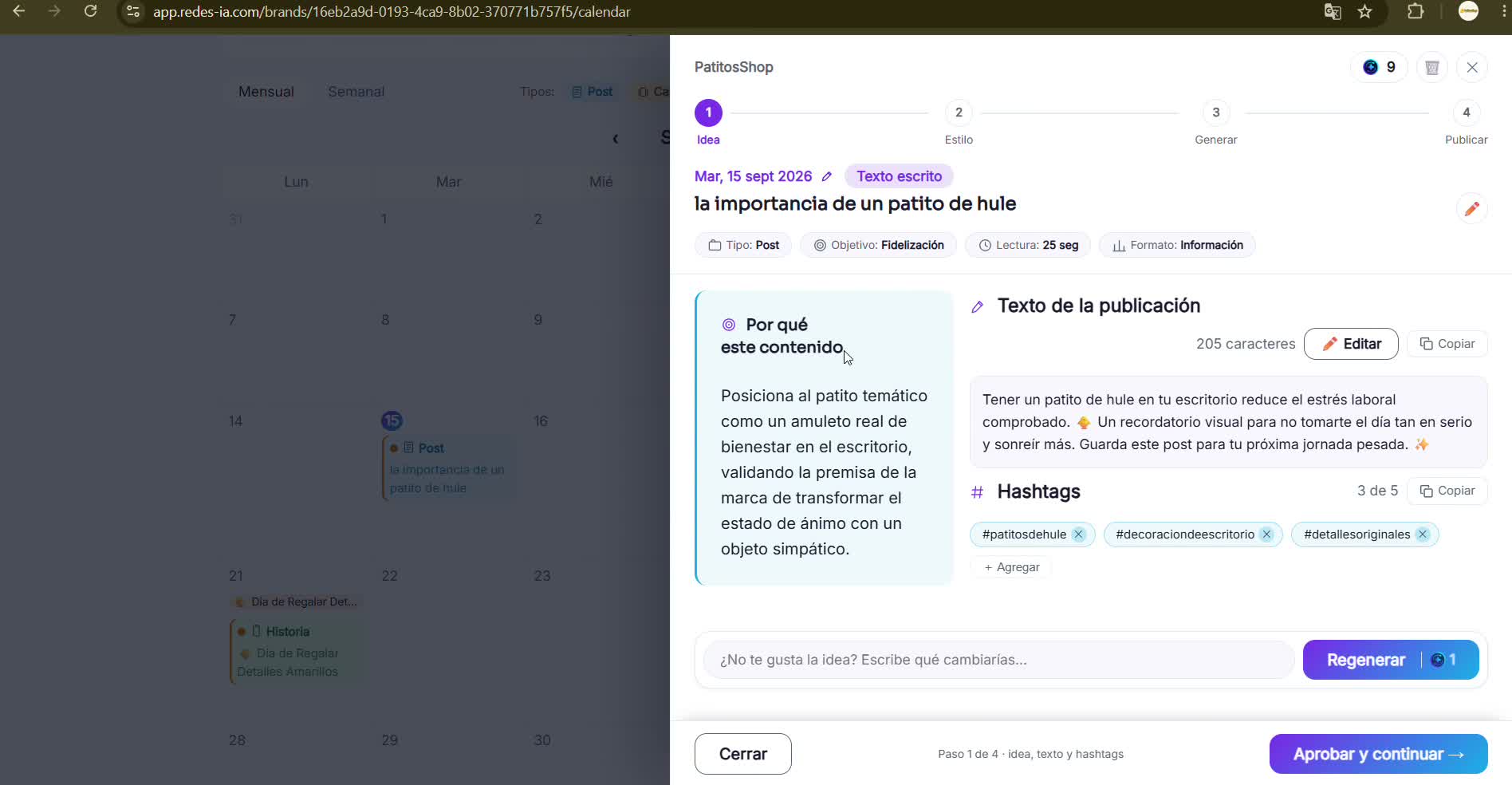 Regenerating the text takes a few seconds and uses one credit.
 - 3
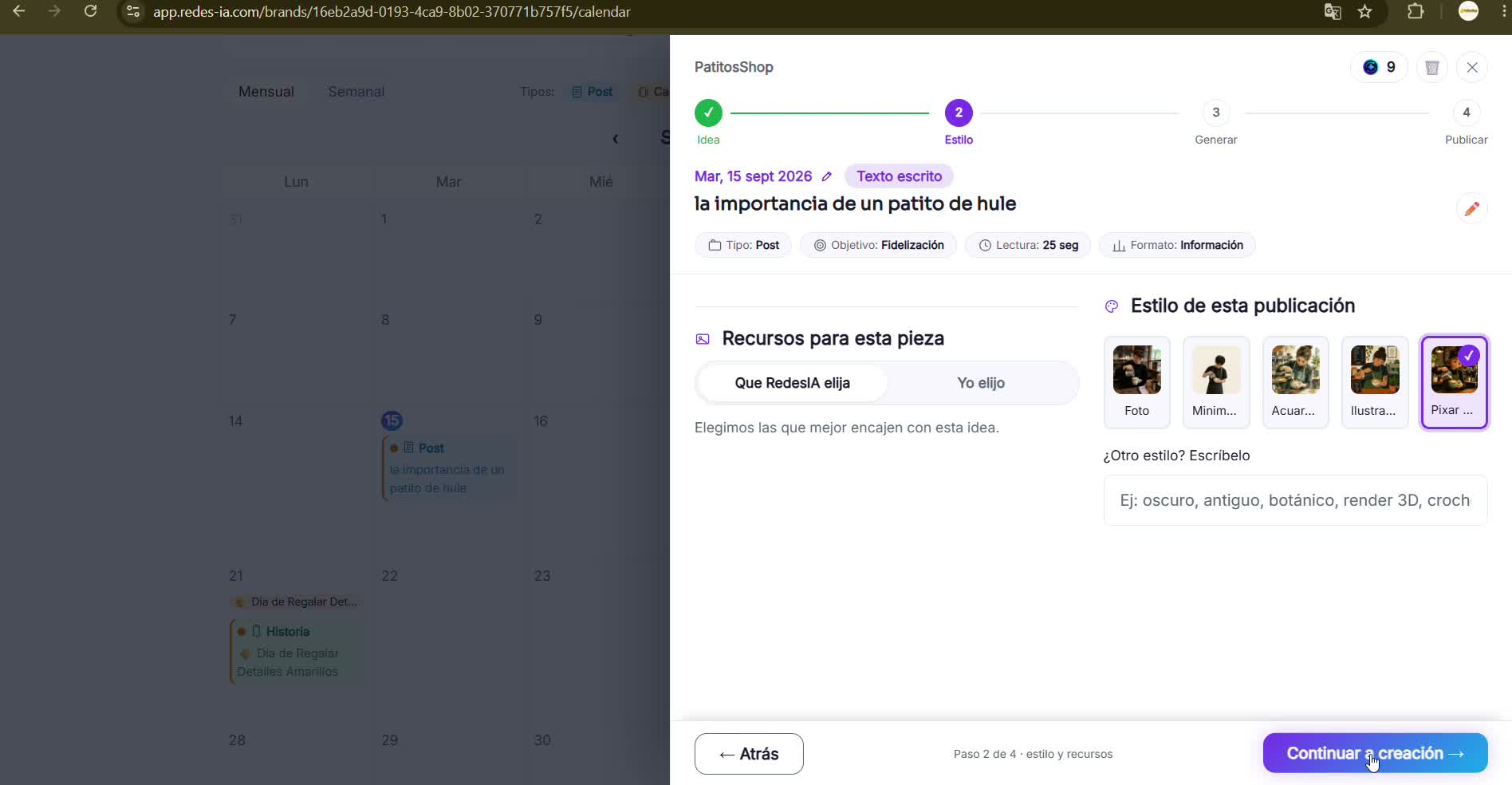
Choose the visual style
RedesIA recommends one based on your brand (photo, minimalist, watercolor, illustrated, Pixar...). You can let RedesIA pick the resources, or choose them yourself.
- 4
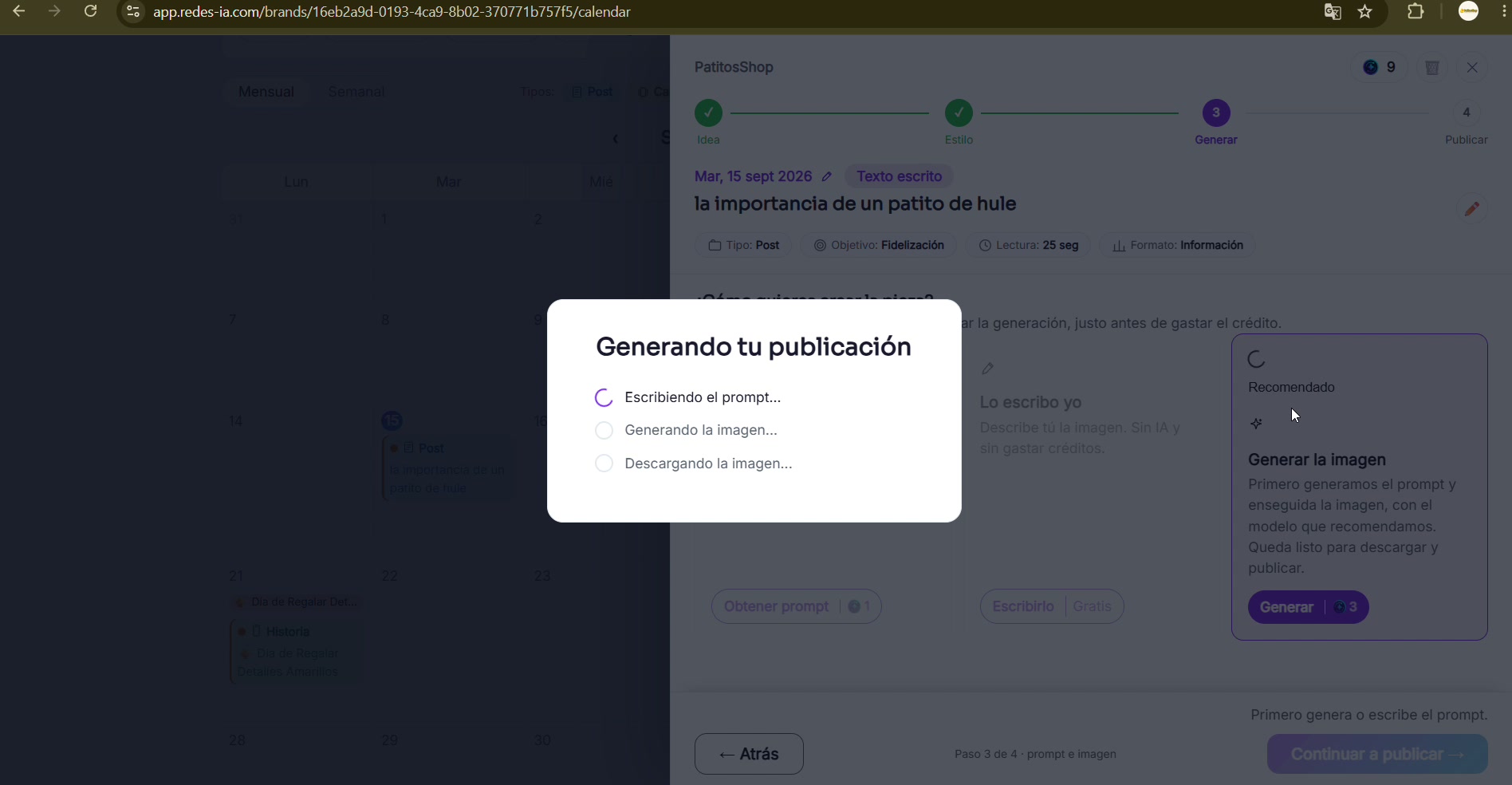
Generate the image
RedesIA writes the prompt and generates the image on its own. If you prefer, you can copy the prompt and use it in another tool without spending credits.
- 5
Download the image and copy the text
Everything is ready in the right order to paste: the image in the size Instagram uses, and the text with the hashtags.
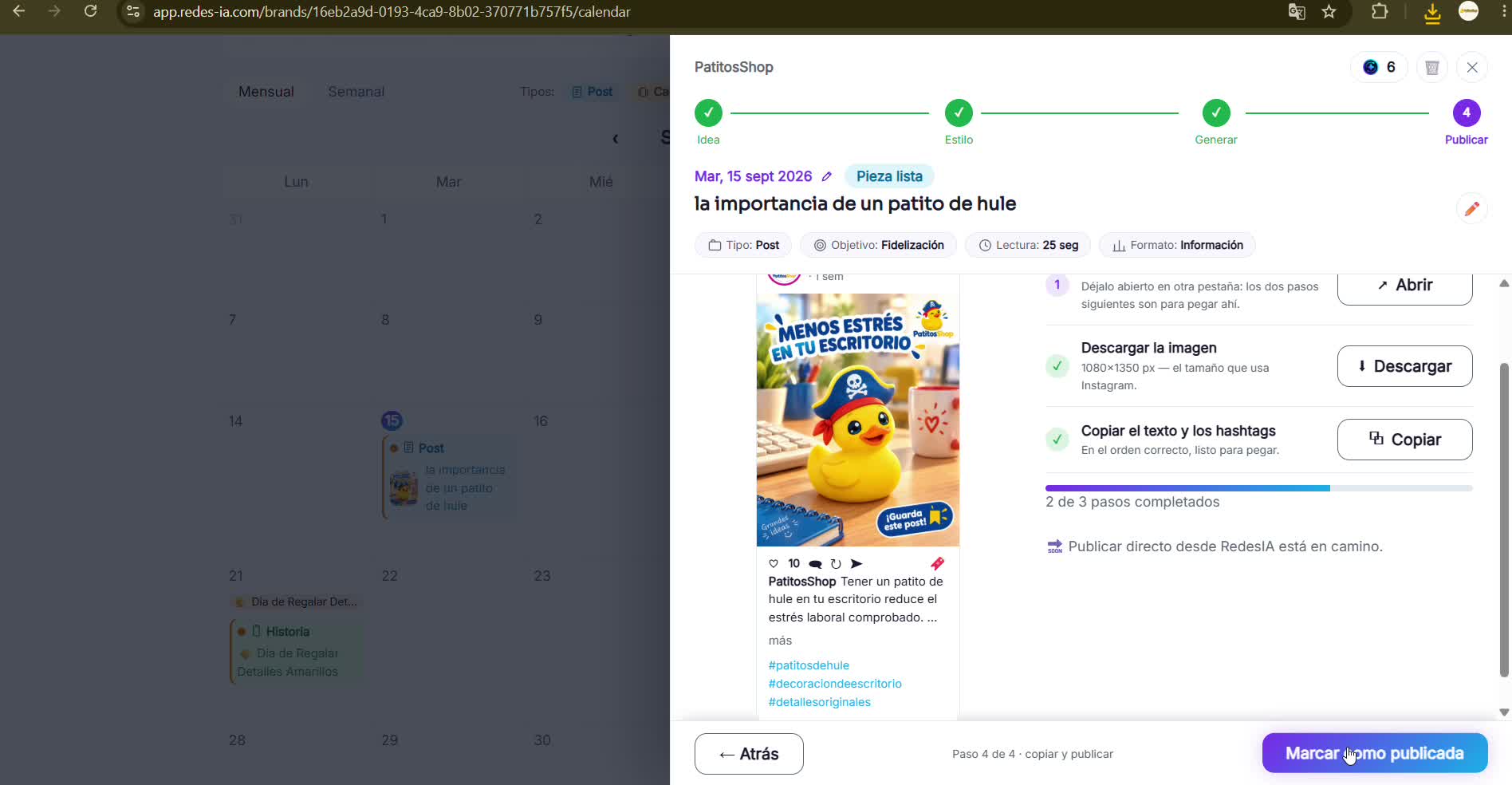 Publishing directly from RedesIA is on the way. For now, you download it and publish manually.